Before you start the PyQt6 tutorial you will need to have a working installation of PyQt6 on your system. If you don't have either set up yet, the following steps will guide you through how to install PyQt6 on macOS.
This guide is also available for Linux and Windows.
Note that the following instructions are only for installation of the GPL licensed version of PyQt. If you need to use PyQt in a non-GPL project you will need to purchase an alternative license from Riverbank Computing to release your software.
Install PyQt6 on macOS Using pip
If you already have a working installation of Python 3 on macOS, you can go ahead and install PyQt6 as for any other Python package, using the following --
pip3 install pyqt6
If you don't have an installation of Python 3, you will need to install one first. You can download macOS installers for Python 3 from the Python homepage. Once installed, you should be able to use the pip3 install command above to install PyQt6.
Install PyQt6 on macOS Using Homebrew
Another alternative is to use Homebrew. Homebrew is a package manager for command-line software on macOS. Homebrew has both Python 3 and PyQt6 available in their repositories.
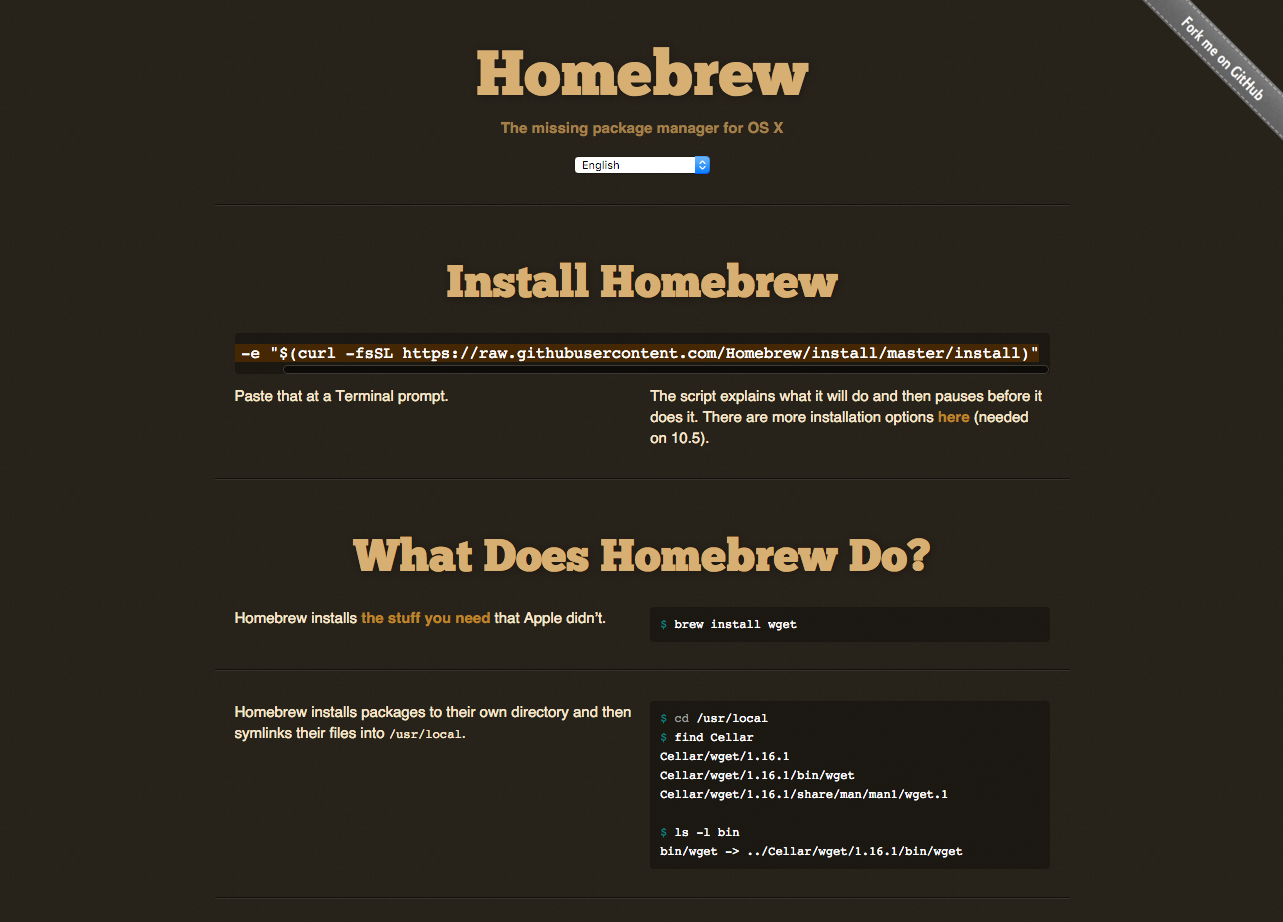 Homebrew -- the missing package manager for macOS
To install Homebrew, run the following from the command line --
ruby -e "$(curl -fsSL https://raw.githubusercontent.com/Homebrew/install/master/install)"
This is also available to copy and paste from the Homebrew homepage.
Once Homebrew is installed you can then install Python 3 with --
brew install python3
With Python installed, you can then install PyQt6 as normal, using pip3 install pyqt6, or alternatively choose to install it using Homebrew with --
brew install pyqt6
Verify Your PyQt6 Installation
To confirm that PyQt6 has been installed correctly on your Mac, open a terminal and run --
python3 -c "import PyQt6.QtWidgets; print('PyQt6 installed successfully')"
If you see PyQt6 installed successfully printed without errors, you're ready to start building Python GUI applications with PyQt6. Head over to the PyQt6 tutorial to get started.
Packaging Python Applications with PyInstaller by Martin Fitzpatrick
This step-by-step guide walks you through packaging your own Python applications from simple examples to complete installers and signed executables.
