When you build a desktop application — say, a video player — you'll eventually want your users to be able to double-click a file and have it open directly in your app. On Windows, this works through file associations: the operating system knows which application to launch for a given file type, and it passes the filename to that application as a command line argument.
In this tutorial, we'll walk through how to receive filenames from the command line in a PyQt6 application, how to set up Windows file associations so your app appears in the "Open with" menu, and how to deal with a common pitfall when packaging your app with PyInstaller.
How Windows opens files with your app
When you double-click a .mp4 file (or any file) in Windows Explorer, the operating system looks up which application is associated with that file type. It then launches that application and passes the full path to the file as a command line argument.
In Python, command line arguments are available through sys.argv — a list of strings. The first item is always the script name (or the path to your executable), and any additional arguments follow after that.
So if Windows launches your app like this:
myplayer.exe C:\Users\Me\Desktop\video.mp4
Then inside your Python code, sys.argv will contain something like:
['myplayer.exe', 'C:\\Users\\Me\\Desktop\\video.mp4']
The filename you need is right there in sys.argv[1].
Reading command line arguments in PyQt6
Let's start with a simple PyQt6 application that displays whatever command line arguments it receives. This is a useful way to verify everything is working before you build out more complex file-handling logic.
from PyQt6.QtWidgets import QApplication, QWidget, QLabel, QVBoxLayout
import sys


class Window(QWidget):
    def __init__(self):
        super().__init__()

        layout = QVBoxLayout()

        for arg in sys.argv:
            label = QLabel(arg)
            layout.addWidget(label)

        self.setLayout(layout)
        self.setWindowTitle("Arguments")


app = QApplication(sys.argv)
w = Window()
w.show()
app.exec()
Save this as arguments.py and run it from the command line, passing a filename as an argument:
python arguments.py filename.mp4
You'll see a window displaying each argument on its own line:
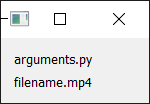
The first line is the script name (arguments.py) and the second is the filename you passed in (filename.mp4). In a real application, you'd use this filename to open and play the video.
Extracting the filename
To grab the filename from the arguments, you have a couple of options.
If you know the filename will always be the last argument, you can use:
filename = sys.argv[-1]
This gets the last item in the list, regardless of how many arguments there are.
You can also clean up sys.argv by removing the script name first:
if __file__ in sys.argv:
    sys.argv.remove(__file__)
After this, sys.argv will contain only the arguments that were passed to your script, not the script name itself.
For a packaged application (where the executable is the script), sys.argv[0] will be the path to the .exe file. In that case, any additional arguments start from sys.argv[1] onward. A safe general approach:
args = sys.argv[1:]  # Everything after the script/exe name.
if args:
    filename = args[0]
Setting up Windows file associations
Now that your app can receive filenames, you need to tell Windows to actually send them. There are a few ways to do this.
Using "Open with" in Explorer
The simplest approach — and a good one for testing — is to right-click a file in Windows Explorer:
- Right-click on a
.mp4file (or whatever file type you want). - Select Open with... and then Choose another app.
- In the window that opens, scroll down and click Look for another app on this PC.
- Navigate to your
.exefile and select it.
If you check the box Always use this app to open .mp4 files, Windows will remember your choice and use your app every time you double-click that file type.
Using the Default Programs Editor
If you want more control — for example, setting up associations for multiple file types, or adding your app to the "Open with" list without making it the default — you can use a free utility called the Default Programs Editor. This provides a friendly interface for editing the Windows registry entries that control file associations.
Editing the registry directly
For a more permanent or automated setup (useful if you're distributing your application), you can register file associations in the Windows registry. Microsoft's documentation on specifying file handlers for file name extensions explains how this works. If you're using an installer like Inno Setup or NSIS to distribute your app, they can create these registry entries automatically during installation.
Handling resource paths in packaged apps
Once your app is working with file associations, you might run into an unexpected problem: icons and other resource files stop loading after you package your app with PyInstaller.
Here's a typical example. You set a window icon using a relative path:
self.setWindowIcon(QIcon('resource/logo.ico'))
This works fine during development because the current working directory is your project folder, where the resource/ directory lives. But when a user double-clicks a .mp4 file on their Desktop, Windows sets the current working directory to the Desktop — not to the folder containing your .exe. So the relative path resource/logo.ico resolves to C:\Users\Me\Desktop\resource\logo.ico, which doesn't exist.
The fix is to build your resource paths relative to your script (or executable), rather than relative to the current working directory.
import os
import sys

# Get the directory where the script (or exe) is located.
basedir = os.path.dirname(__file__)
Then use os.path.join to construct full paths to your resources:
icon_path = os.path.join(basedir, 'resource', 'logo.ico')
self.setWindowIcon(QIcon(icon_path))
Now the icon path is always relative to where your application actually lives, regardless of where it's launched from.
When you package with PyInstaller, __file__ may not always behave the same way. For a more robust approach that works in both development and packaged modes:
import os
import sys

if getattr(sys, 'frozen', False):
    # Running as a packaged executable.
    basedir = os.path.dirname(sys.executable)
else:
    # Running as a script.
    basedir = os.path.dirname(os.path.abspath(__file__))
The sys.frozen attribute is set by PyInstaller when running a packaged app, and sys.executable points to the .exe file. This gives you a reliable base directory in both cases.
Complete working example
Here's a complete application that ties everything together: it reads a filename from the command line, displays it in the window, and correctly resolves resource paths for both development and packaged use.
import os
import sys

from PyQt6.QtGui import QIcon
from PyQt6.QtWidgets import (
    QApplication, QWidget, QLabel, QVBoxLayout,
)

# Determine the base directory for resolving resource paths.
if getattr(sys, 'frozen', False):
    basedir = os.path.dirname(sys.executable)
else:
    basedir = os.path.dirname(os.path.abspath(__file__))


class Window(QWidget):
    def __init__(self):
        super().__init__()

        layout = QVBoxLayout()

        # Get any filenames passed on the command line.
        args = sys.argv[1:]

        if args:
            filename = args[0]
            label = QLabel(f"File to open: {filename}")
        else:
            label = QLabel("No file specified. Drag a file onto the exe, "
                           "or set up a file association.")

        layout.addWidget(label)

        # List all arguments for debugging.
        layout.addWidget(QLabel(""))
        layout.addWidget(QLabel("All sys.argv entries:"))
        for i, arg in enumerate(sys.argv):
            layout.addWidget(QLabel(f"  [{i}] {arg}"))

        self.setLayout(layout)
        self.setWindowTitle("File Opener")

        # Load the icon using an absolute path based on basedir.
        icon_path = os.path.join(basedir, 'resource', 'logo.ico')
        if os.path.exists(icon_path):
            self.setWindowIcon(QIcon(icon_path))


app = QApplication(sys.argv)
w = Window()
w.show()
sys.exit(app.exec())
To test this during development:
python file_opener.py "C:\Users\Me\Videos\myvideo.mp4"
To package it with PyInstaller:
pyinstaller -w file_opener.py
Make sure to copy your resource/ folder (containing logo.ico) into the same directory as the generated .exe file, or use PyInstaller's --add-data option to bundle it.
Then set up a file association as described above, and double-clicking a .mp4 file will launch your app with the filename ready to use.
From here, you could replace the labels with actual file-handling logic — loading a video into a media player widget, opening an image, parsing a data file — whatever your application needs. The pattern is always the same: read the path from sys.argv, and do something with it.
PyQt/PySide 1:1 Coaching with Martin Fitzpatrick
Save yourself time and frustration. Get one on one help with your Python GUI projects. Working together with you I'll identify issues and suggest fixes, from bugs and usability to architecture and maintainability.
