I'm trying to add a custom widget (PowerBar) to a window built in Qt Designer, but it doesn't appear. When I call
.show()on the widget directly, it opens in a separate window instead. How can I embed a promoted custom widget inside my main window properly?
If you've ever built a custom widget in Python, got it working on its own, and then tried to embed it into a larger application only to find it vanishes — or pops up as a separate floating window — you're not alone. This is one of the most common stumbling blocks when working with Qt Designer and custom widgets.
The good news is there are only a handful of things that cause this, and they're all straightforward to fix once you know what to look for.
The scenario
Let's say you have a custom widget class called PowerBar defined in a file power_bar.py. It works fine when you run it on its own. You then create a MainWindow form in Qt Designer, drop a plain QWidget onto it, and promote that widget to your PowerBar class. You compile the .ui file to Python, and you get something like this in your generated main_window.py:
from PyQt6 import QtCore, QtGui, QtWidgets


class Ui_MainWindow(object):
    def setupUi(self, MainWindow):
        MainWindow.setObjectName("MainWindow")
        MainWindow.resize(364, 634)
        self.centralwidget = QtWidgets.QWidget(MainWindow)
        self.centralwidget.setObjectName("centralwidget")
        self.powerbarWidget = PowerBar(5)
        self.powerbarWidget.setGeometry(QtCore.QRect(30, 40, 291, 541))
        self.powerbarWidget.setObjectName("powerbarWidget")
        MainWindow.setCentralWidget(self.centralwidget)

        self.retranslateUi(MainWindow)
        QtCore.QMetaObject.connectSlotsByName(MainWindow)

    def retranslateUi(self, MainWindow):
        _translate = QtCore.QCoreApplication.translate
        MainWindow.setWindowTitle(_translate("MainWindow", "MainWindow"))

from power_bar import PowerBar
And you load it like this:
from PyQt6.QtWidgets import QApplication, QMainWindow
import sys
from main_window import Ui_MainWindow


class Window(QMainWindow):

    def __init__(self):
        super().__init__()
        self.ui = Ui_MainWindow()
        self.ui.setupUi(self)


if __name__ == "__main__":
    app = QApplication(sys.argv)
    w = Window()
    w.show()
    sys.exit(app.exec())
You run it, and... the main window appears, but it's empty. The PowerBar widget is nowhere to be seen.
If you try adding self.ui.powerbarWidget.show() after setupUi, the widget does appear — but as a completely separate window floating on your desktop. That's not what you want.
So what's going on?
The cause: no layout on the parent widget
Look at the generated code carefully. The PowerBar widget is created like this:
self.powerbarWidget = PowerBar(5)
There are two problems here:

Purchasing Power Parity
Developers in [[ country ]] get [[ discount.discount_pc ]]% OFF on all books & courses with code [[ discount.coupon_code ]]-
No parent widget is set. The
PowerBaris created without a parent, so Qt treats it as its own independent top-level window. That's why calling.show()on it opens a separate window. -
No layout is applied to
centralwidget. Even if you fix the parent, without a layout managing the child widgets insidecentralwidget, the widget won't be positioned or sized correctly.
In Qt Designer, you can spot this problem visually. If you look at the Object Inspector panel and see a red cross icon next to a widget, that means no layout has been applied to it.
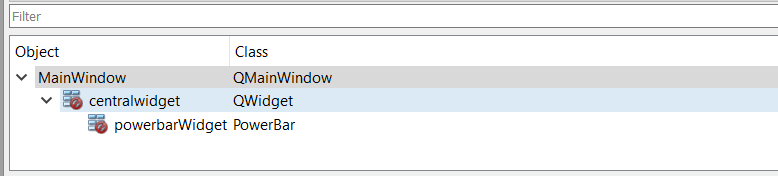
That red cross is Qt Designer telling you: "This container has no layout, so its children won't behave properly at runtime."
The fix: add a layout
The solution is to give centralwidget a layout and add the PowerBar widget to that layout. When you add a widget to a layout, the layout automatically takes care of setting the parent, so both problems are solved at once.
In Qt Designer, right-click on the centralwidget in the Object Inspector and choose a layout — for example, "Lay Out Horizontally" or "Lay Out Vertically." Then recompile the .ui file.
If you're editing the generated Python file by hand (which you sometimes need to do when your custom widget constructor takes non-standard arguments), the fixed version looks like this:
from PyQt6 import QtCore, QtGui, QtWidgets


class Ui_MainWindow(object):
    def setupUi(self, MainWindow):
        MainWindow.setObjectName("MainWindow")
        MainWindow.resize(364, 634)
        self.centralwidget = QtWidgets.QWidget(MainWindow)
        self.centralwidget.setObjectName("centralwidget")
        self.horizontalLayout = QtWidgets.QHBoxLayout(self.centralwidget)
        self.horizontalLayout.setObjectName("horizontalLayout")
        self.powerbarWidget = PowerBar(5)
        self.powerbarWidget.setObjectName("powerbarWidget")
        self.horizontalLayout.addWidget(self.powerbarWidget)
        MainWindow.setCentralWidget(self.centralwidget)

        self.retranslateUi(MainWindow)
        QtCore.QMetaObject.connectSlotsByName(MainWindow)

    def retranslateUi(self, MainWindow):
        _translate = QtCore.QCoreApplication.translate
        MainWindow.setWindowTitle(_translate("MainWindow", "MainWindow"))

from power_bar import PowerBar
The two added lines are:
self.horizontalLayout = QtWidgets.QHBoxLayout(self.centralwidget)
This creates a horizontal layout and assigns it to centralwidget.
self.horizontalLayout.addWidget(self.powerbarWidget)
This adds the PowerBar widget into that layout. The layout automatically parents the widget to centralwidget, and handles positioning and sizing for you.
With this change, the widget appears inside the main window exactly as expected — no extra .show() call needed.
Other common causes of missing widgets
While a missing layout is the most frequent culprit, there are a few other things worth checking when a widget doesn't appear.
Unprotected code in imported modules
If your power_bar.py file has demo or test code at the bottom that isn't wrapped in an if __name__ == "__main__": guard, that code will run every time another file imports from it. This can cause extra windows to appear, extra event loops to start, or other confusing behavior.
For example, if power_bar.py ends with:
app = QApplication(sys.argv)
volume = PowerBar()
volume.show()
app.exec()
Then importing PowerBar in your main application will execute all of that code before your own application even starts. Always protect standalone demo code like this:
if __name__ == "__main__":
    app = QApplication(sys.argv)
    volume = PowerBar()
    volume.show()
    app.exec()
This way, the demo code only runs when you execute power_bar.py directly, and is skipped when another file imports from it.
Missing or incorrect parent widget
If you're creating widgets in code (not through Qt Designer), always make sure child widgets have the correct parent. A widget with no parent becomes its own top-level window. You can set the parent either by passing it to the constructor:
self.powerbarWidget = PowerBar(5, parent=self.centralwidget)
Or by adding the widget to a layout, which sets the parent for you. Using layouts is generally the better approach, since it also handles sizing and positioning.
Widget is hidden or has zero size
Occasionally a widget exists and has the right parent, but it's not visible because it has a zero width or height, or because .hide() was called somewhere. If you suspect this, try printing the widget's geometry to check:
print(self.powerbarWidget.geometry())
If the width or height is zero, a layout will usually fix that too.
Complete working example
Here's a full, self-contained example showing a custom widget properly embedded in a main window using a layout. You can copy this into a single file and run it to see it working.
import sys
from PyQt6.QtWidgets import (
    QApplication, QMainWindow, QWidget, QVBoxLayout,
    QHBoxLayout, QLabel, QSlider,
)
from PyQt6.QtCore import Qt


class ColorBar(QWidget):
    """A simple custom widget that displays a colored bar."""

    def __init__(self, color="crimson", parent=None):
        super().__init__(parent)
        self.setStyleSheet(
            f"background-color: {color}; border-radius: 4px;"
        )
        self.setMinimumSize(40, 100)


class MainWindow(QMainWindow):

    def __init__(self):
        super().__init__()
        self.setWindowTitle("Custom Widget in a Layout")
        self.resize(400, 300)

        # Create the central widget and give it a layout.
        central_widget = QWidget()
        self.setCentralWidget(central_widget)
        main_layout = QVBoxLayout(central_widget)

        # Add a label.
        label = QLabel("Here are some custom color bar widgets:")
        main_layout.addWidget(label)

        # Create a horizontal layout for the color bars.
        bar_layout = QHBoxLayout()
        main_layout.addLayout(bar_layout)

        # Add custom widgets to the layout.
        for color in ["crimson", "dodgerblue", "gold", "mediumseagreen"]:
            bar = ColorBar(color)
            bar_layout.addWidget(bar)

        # Add a slider below.
        slider = QSlider(Qt.Orientation.Horizontal)
        slider.setRange(50, 300)
        slider.setValue(100)
        main_layout.addWidget(slider)


if __name__ == "__main__":
    app = QApplication(sys.argv)
    window = MainWindow()
    window.show()
    sys.exit(app.exec())
Each ColorBar widget appears inside the main window because it's added to a layout. The layout parents it to central_widget, positions it, and gives it an appropriate size. No manual .show() calls, no floating windows, no surprises.
Quick checklist
When a widget isn't appearing in your Qt application, run through these checks:
- Is there a layout on the parent widget? Without a layout, child widgets won't be displayed properly. In Qt Designer, look for the red cross icon in the Object Inspector.
- Does the widget have a parent? A widget with
parent=Nonebecomes its own window. Adding it to a layout fixes this automatically. - Is imported module code protected? Wrap any standalone test code in
if __name__ == "__main__":so it doesn't execute on import. - Does the widget have a non-zero size? Check with
print(widget.geometry())if you're unsure.
Most of the time, the answer is the first one: add a layout. Once you get in the habit of always using layouts to manage your widgets, this category of problem largely goes away.
Packaging Python Applications with PyInstaller by Martin Fitzpatrick — This step-by-step guide walks you through packaging your own Python applications from simple examples to complete installers and signed executables.
