Adding images to your application is a common requirement, whether you're building an image/photo viewer, or just want to add some decoration to your GUI. Unfortunately, because of how this is done in Qt, it can be a little bit tricky to work out at first.
In this short tutorial, we will look at how you can insert an external image into your PySide2 application layout, using both code and Qt Designer.
Which Widget to Use for Displaying Images in PySide2?
Since you're wanting to insert an image you might be expecting to use a widget named QImage or similar, but that would make a bit too much sense! QImage is actually Qt's image object type, which is used to store the actual image data for use within your application. The widget you use to display an image is QLabel.
The primary use of QLabel is of course to add labels to a UI, but it also has the ability to display an image — or pixmap — instead, covering the entire area of the widget. Below we'll look at how to use QLabel to display an image in your PySide2 applications.
How to Display an Image Using Qt Designer
First, create a MainWindow object in Qt Designer and add a "Label" to it. You can find Label in Display Widgets at the bottom of the left hand panel. Drag this onto the QMainWindow to add it.
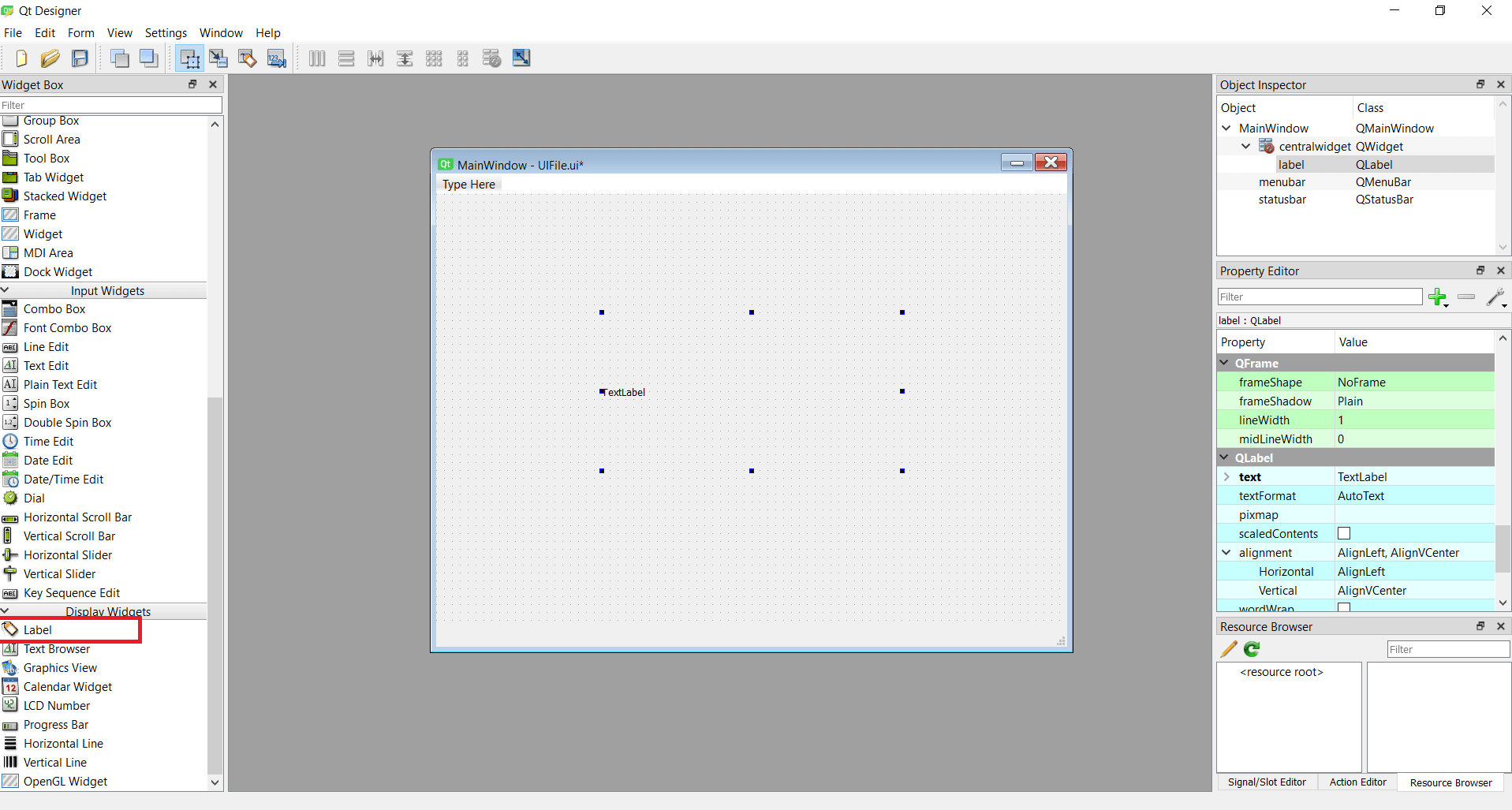 MainWindow with a single QLabel added
Next, with the Label selected, look in the right hand QLabel properties panel for the pixmap property (scroll down to the blue region). From the property editor dropdown select "Choose File…" and select an image file to insert.
As you can see, the image is inserted, but the image is kept at its original size, cropped to the boundaries of the QLabel box. You need to resize the QLabel to be able to see the entire image.
Bring Your PyQt/PySide Application to Market — Specialized launch support for scientific and engineering software built using Python & Qt.
In the same controls panel, click to enable scaledContents.
When scaledContents is enabled the image is resized to fit the bounding box of the QLabel widget. This shows the entire image at all times, although it does not respect the aspect ratio of the image if you resize the widget.
You can now save your UI to file (e.g. as mainwindow.ui).
Loading the UI File in PySide2
To view the resulting UI, we can use the standard application template below. This loads the .ui file we've created (mainwindow.ui), creates the window and starts up the application. For more on designing interfaces with Qt Designer, see our Qt Designer tutorial.
import sys
from PySide2 import QtWidgets
from PySide2.QtUiTools import QUiLoader

loader = QUiLoader()
app = QtWidgets.QApplication(sys.argv)
window = loader.load("mainwindow.ui", None)
window.show()
app.exec_()
Running the above code will create a window, with the image displayed in the middle.
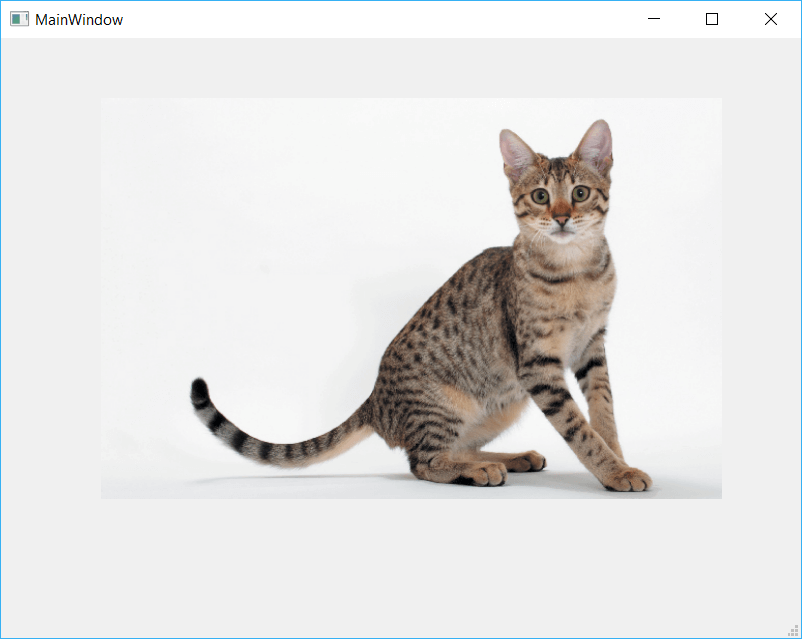 QtDesigner application showing a Cat
How to Display an Image in PySide2 Using Python Code
Instead of using Qt Designer, you can show an image in your PySide2 application through Python code. As before we use a QLabel widget and add a pixmap image to it. This is done by creating a QPixmap object and passing it to the QLabel using the .setPixmap() method. The full code is below.
import sys
from PySide2.QtGui import QPixmap
from PySide2.QtWidgets import QMainWindow, QApplication, QLabel

class MainWindow(QMainWindow):

    def __init__(self):
        super().__init__()
        self.title = "Image Viewer"
        self.setWindowTitle(self.title)

        label = QLabel(self)
        pixmap = QPixmap('cat.jpg')
        label.setPixmap(pixmap)
        self.setCentralWidget(label)
        self.resize(pixmap.width(), pixmap.height())


app = QApplication(sys.argv)
w = MainWindow()
w.show()
sys.exit(app.exec_())
The block of code below shows the step-by-step process of creating the QLabel, creating a QPixmap object from our file cat.jpg (passed as a file path), setting this QPixmap onto the QLabel with .setPixmap() and then finally resizing the window to fit the image.
label = QLabel(self)
pixmap = QPixmap('cat.jpg')
label.setPixmap(pixmap)
self.setCentralWidget(label)
self.resize(pixmap.width(), pixmap.height())
Launching this code will show a window with the cat photo displayed and the window sized to the size of the image.
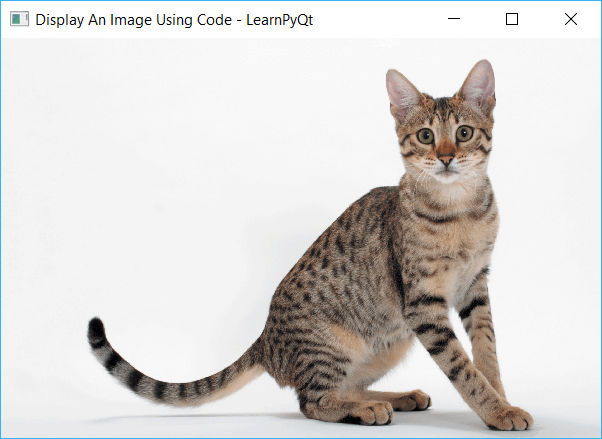 QMainWindow with Cat image displayed
How to Scale Images with setScaledContents
Just as in Qt Designer, you can call .setScaledContents(True) on your QLabel image to enable scaled mode, which resizes the image to fit the available space.
label = QLabel(self)
pixmap = QPixmap('cat.jpg')
label.setPixmap(pixmap)
label.setScaledContents(True)
self.setCentralWidget(label)
self.resize(pixmap.width(), pixmap.height())
Notice that you set the scaled state on the QLabel widget and not the image pixmap itself.
Conclusion
In this quick tutorial we've covered how to display images in your PySide2 applications using QLabel and QPixmap, both from Qt Designer and directly from Python code. The QLabel widget combined with QPixmap provides a straightforward way to add images to your PySide2 GUIs, whether you need a simple image display or a scalable image viewer. If you're working with PySide6, check out our updated guide on adding images to PySide6 applications. For more on working with QPixmap and drawing graphics, see our bitmap graphics tutorial. To learn more about the full range of PySide2 widgets available, see our widgets tutorial.