Qt Designer is a great tool for designing PyQt5 GUIs, allowing you to use the entire range of Qt5 widgets and layouts to construct your apps. As your applications get more complex, however, you may find yourself creating custom widgets, or using PyQt5 libraries such as PyQtGraph, whose widgets are not available within Designer.
Helpfully, Qt Designer supports a mechanism for using placeholder widgets to represent your custom or external widgets in your design. This tutorial will walk you through the process of embedding a PyQtGraph plot widget into your PyQt5 app using Qt Designer's widget promotion feature.
Promoting Widgets in Qt Designer
The principle of using placeholders in Qt Designer is quite straightforward:
- Create a UI as normal in Qt Designer.
- Add a placeholder widget to represent the custom widget you're adding.
- Tell Qt to replace your placeholder with your actual widget when building the UI.
In Qt, this final step is referred to as promoting (as in promoting a base class).
If the custom widget you are adding is a subclass of an existing Qt widget, you may want to use the base class as your placeholder to promote from. For example, if you have a custom MyAwesomeButton button widget subclassed from QPushButton use QPushButton as the placeholder and promote it to MyAwesomeButton. This gives you access to the base class properties, events, and actions from within Qt Designer.
If you don't have an obvious base class to use, then you can use QWidget, the common base class of all Qt widgets.
PyQtGraph: A Fast Plotting Library for PyQt5
Data science is one of the most popular uses of Python, and building dashboards and analysis tools is a common use case of PyQt5. For all of these, being able to add plots to your UI is very useful — and being able to do this from Qt Designer even more so.
There are a number of plotting libraries available in Python, with matplotlib being the most popular and offering some basic support for PyQt5. PyQtGraph is a popular alternative which uses Qt's native QGraphicsScene to provide fast zooming, scaling, and drag-and-drop behavior that feels like a natural part of your application.
Whether you're using PyQtGraph or matplotlib for your plotting needs, the plot canvas widgets are not available from within Qt Designer. In this tutorial, I'll walk you through the process of embedding these custom widgets in your apps using widget promotion.
If you don't have PyQtGraph installed already, you can install it using the following command:
$ python -m pip install pyqtgraph
The instructions below aren't specific to PyQtGraph, and you can use the same process to add matplotlib or any other custom widgets to your app.
Setting Up the UI in Qt Designer
We will be using Qt Designer to create a simple UI design and add a placeholder for our PyQtGraph widget. First, open Qt Designer and create a new QMainWindow as usual.
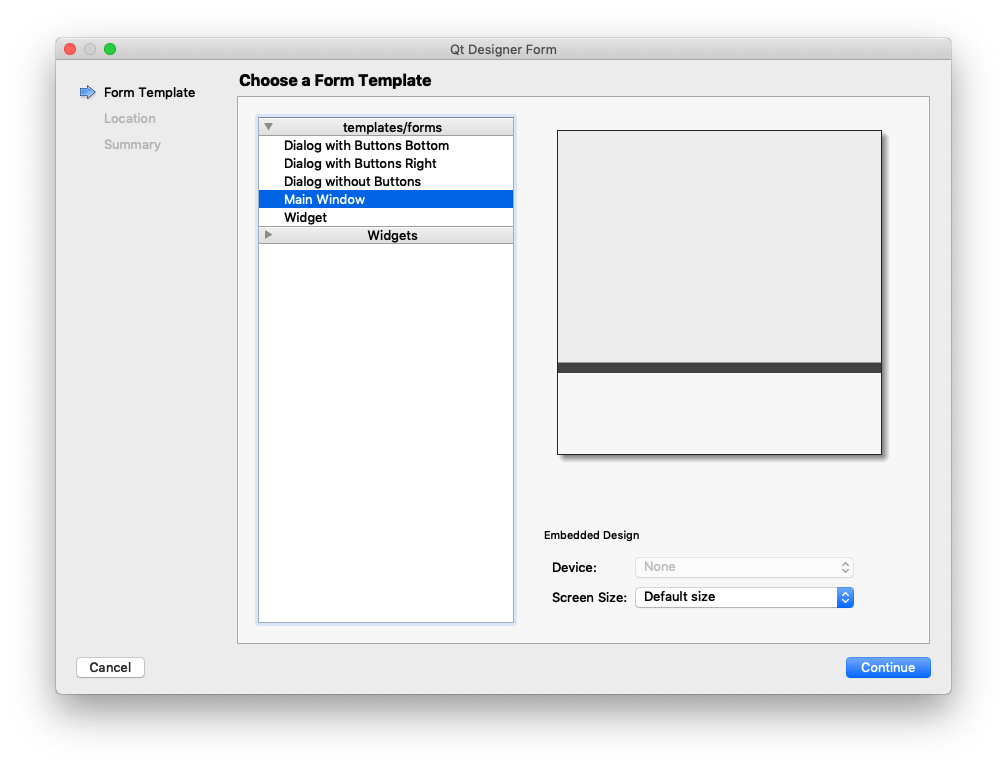 Qt Creator — Select MainWindow for widget type
We next need to add the placeholder widget. As there is no suitable base class for the PyQtGraph plot widget, we'll use the basic QWidget as our placeholder. Select the Widget from the left sidebar and place it in the center of your window.
Give the widget a name, graphWidget will do. This is just a tag to reference the element in code.
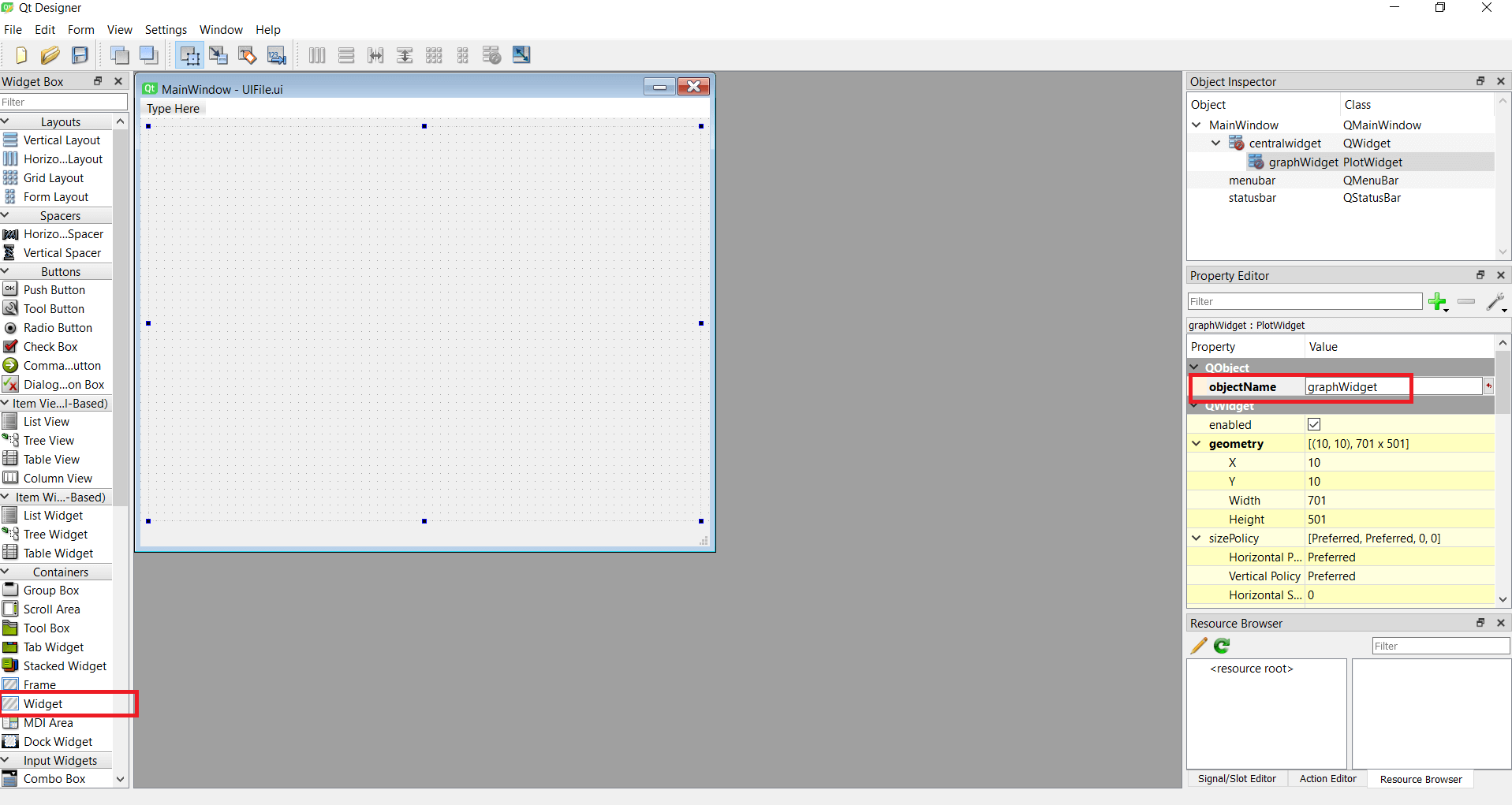 Add a widget to the window. Name the widget as "graphWidget"
Promoting QWidget to a Custom PyQtGraph Widget
Right click on the widget and select Promote to from the widget's context menu.
Promoting a QWidget indicates that it should be replaced with the specified subclass, in our case the PyQtGraph PlotWidget.
A promoted widget can be reverted back to its base class by right-clicking and choosing Demote to from the widget's context menu.
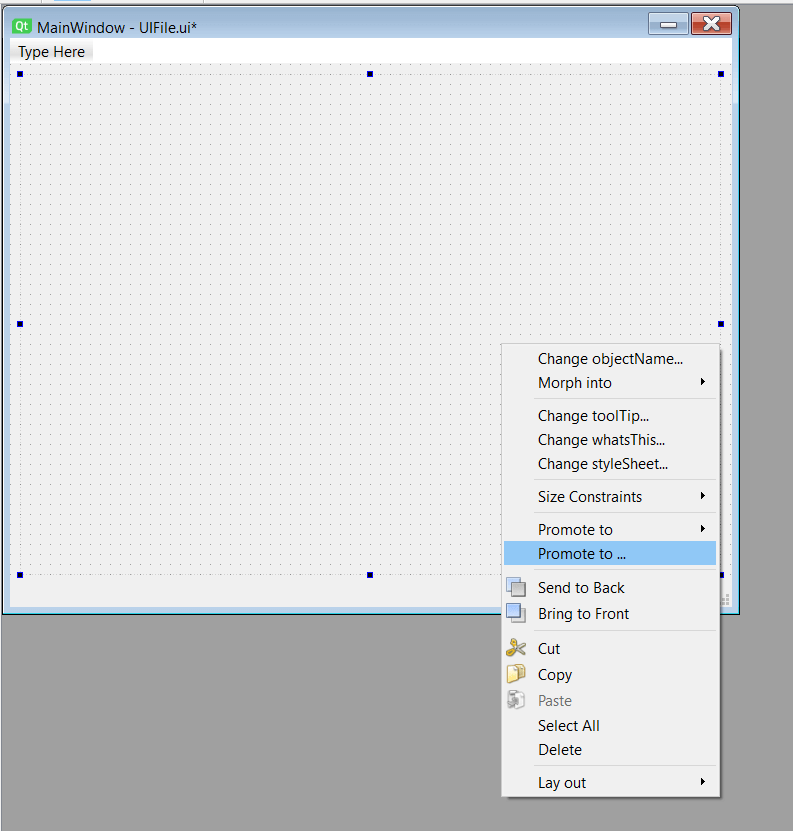 Right click to show the promotion menu
You will be presented with a dialog to specify the custom widget class the placeholder widget will become.
The header file is the name of the Python module used to import the class, which is pyqtgraph. Specify PlotWidget as the class name of the widget to replace it with.
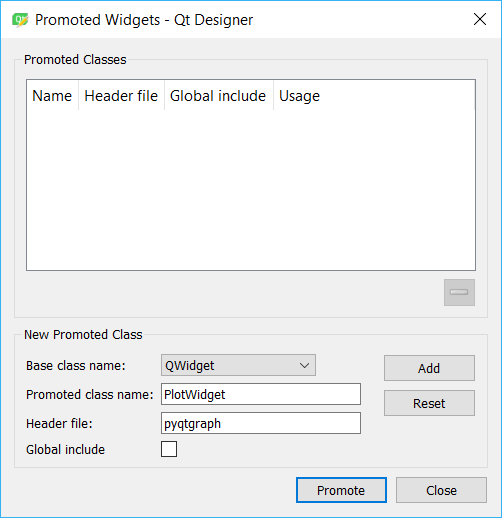 Promote the widget by specifying the class name as PlotWidget and header file as pyqtgraph.
The name you use for the file doesn't matter, but it's usually a good idea to name it after the class you're going to create with it.
Voila! The widget is now promoted to a PyQtGraph plot canvas. But you won't be able to see any changes within Qt Designer. Save the window as mainwindow.ui in the same directory as your PyQt5 app.
For a complete guide to using Qt Designer .ui files from Python check out First steps with Qt Creator.
Loading the .ui File in Python
We now have the mainwindow.ui file containing our UI definition with the promoted widget. We can load this from Python to show the window and our custom PyQtGraph widget.
Let's start from a basic app template:
from PyQt5 import QtWidgets, uic
from pyqtgraph import PlotWidget

class MainWindow(QtWidgets.QMainWindow):
    def __init__(self, *args, **kwargs):
        super().__init__(*args, **kwargs)

        # Load the UI Page
        uic.loadUi("mainwindow.ui", self)

app = QtWidgets.QApplication([])
main = MainWindow()
main.show()
app.exec_()
Save the code above in the same folder as your mainwindow.ui file, and run it as usual:
python3 my_app.py
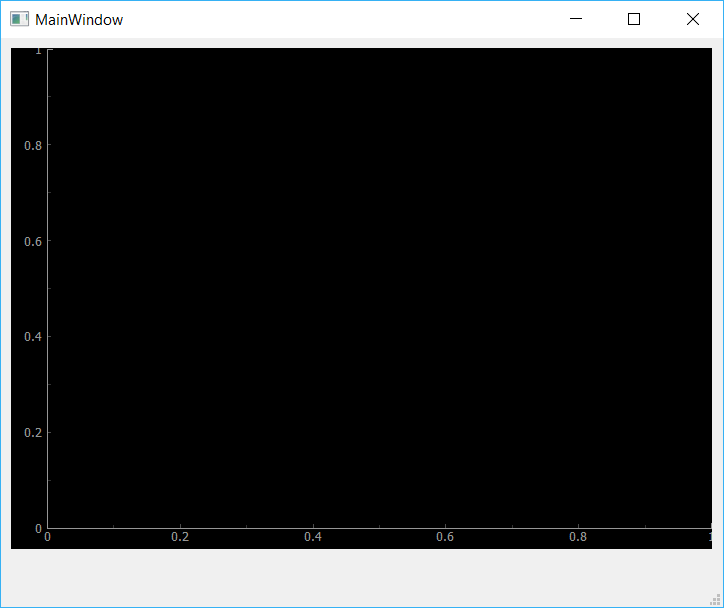 Your PyQtGraph widget is now embedded in the PyQt5 application
You should see a window with your widget transformed into a PyQtGraph plotting widget.
Plotting Data on the Embedded PyQtGraph Widget
Let's now create a method to make a plot of time (hours) vs temperature (ºC) data:
from PyQt5 import QtWidgets, uic

class MainWindow(QtWidgets.QMainWindow):
    def __init__(self, *args, **kwargs):
        super().__init__(*args, **kwargs)

        #Load the UI Page
        uic.loadUi('mainwindow.ui', self)

        self.plot(
            [1, 2, 3, 4, 5, 6, 7, 8, 9, 10],  # Hours
            [30, 32, 34, 32, 33, 31, 29, 32, 35, 45],  # Degrees Celsius
        )

    def plot(self, hour, temperature):
        self.graphWidget.plot(hour, temperature)

app = QtWidgets.QApplication([])
main = MainWindow()
main.show()
app.exec_()
So, we added the plot() method, which accepts two arrays, hour and temperature. Then, it plots the data by calling the .plot() method on graphWidget.
Run the code, you should see the following:
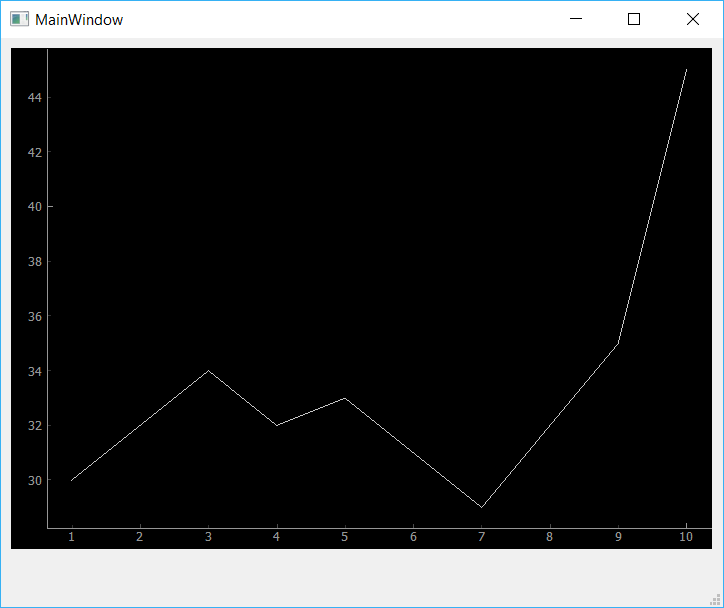 The custom PyQtGraph widget showing dummy data.
That's it! You have successfully embedded a PyQtGraph plot into your PyQt5 application using Qt Designer's widget promotion feature. The default PyQtGraph plot isn't very pretty. However, you can play around with the .plot() method to change the data shown.
This same widget promotion technique works for embedding any custom PyQt5 widget in Qt Designer — whether it's a matplotlib canvas, a custom control, or any other third-party widget. Simply specify the correct module name and class name in the promotion dialog, and Qt Designer will handle the rest when the .ui file is loaded.
Create GUI Applications with Python & Qt5 by Martin Fitzpatrick
(PyQt5 Edition) The hands-on guide to making apps with Python — Over 15,000 copies sold!
