When building UIs you can sometimes find yourself needing to display a variable number of widgets arranged in a tidy grid — say, three columns and as many rows as the data requires. And when there are more items than fit on screen, you want the whole thing to scroll.
This is a common pattern, but it's easy to run into trouble. If you set fixed sizes on parent containers, adding more items can cause everything to squash together or overflow. In this tutorial, we'll walk through how to set up a QGridLayout inside a QScrollArea so your grid grows naturally and stays scrollable, no matter how many items you add.
The problem with fixed geometry
A tempting approach when starting out is to use setGeometry() on every widget — placing them at exact pixel positions. This works when you know exactly how many items you'll have, but as soon as the number changes (say, from 15 to 30 or 300), things fall apart. Widgets overlap, get clipped, or the container doesn't grow to fit them all.
The solution is to let Qt's layout system handle the sizing and positioning for you. That's what layouts are for — they arrange child widgets automatically and respond to changes in content and window size.
Setting up the scrollable grid
Let's start with a minimal example: a QMainWindow containing a QScrollArea, which holds a widget with a QGridLayout. We'll populate it with some placeholder group boxes.
import sys

from PyQt5.QtWidgets import (
    QApplication, QMainWindow, QWidget, QScrollArea,
    QFrame, QGridLayout, QGroupBox, QHBoxLayout,
    QPushButton, QLabel,
)


class Window(QMainWindow):

    def __init__(self, *args, **kwargs):
        super().__init__(*args, **kwargs)

        self.setGeometry(100, 100, 920, 560)

        # Central widget with its own layout
        central_widget = QWidget(self)
        central_layout = QGridLayout(central_widget)

        # Scroll area
        scroll_area = QScrollArea(central_widget)
        scroll_area.setWidgetResizable(True)
        central_layout.addWidget(scroll_area, 0, 0)

        # A content widget that will live inside the scroll area
        scroll_content = QWidget()
        scroll_content_layout = QGridLayout(scroll_content)

        # The frame that holds our grid of cards
        staff_frame = QFrame(scroll_content)
        staff_frame_layout = QGridLayout(staff_frame)

        # The actual grid where group boxes go
        self.staff_grid = QGridLayout()
        staff_frame_layout.addLayout(self.staff_grid, 0, 0)

        scroll_content_layout.addWidget(staff_frame, 0, 0)
        scroll_area.setWidget(scroll_content)

        self.setCentralWidget(central_widget)

        # Populate the grid
        self.create_boxes()

    def create_boxes(self):
        number = 30
        columns = 3

        for index in range(number):
            row = index // columns
            col = index % columns

            box = QGroupBox()
            box.setFixedSize(250, 130)
            self.staff_grid.addWidget(box, row, col)

            layout = QHBoxLayout()
            box.setLayout(layout)

            label = QLabel(f"Staff #{index + 1}")
            layout.addWidget(label)


if __name__ == "__main__":
    app = QApplication(sys.argv)
    window = Window()
    window.show()
    sys.exit(app.exec_())
Run this and you'll see 30 group boxes arranged in a 3-column grid, inside a scrollable area. Try changing number = 30 to number = 100 or number = 7 — the scroll area adjusts automatically.
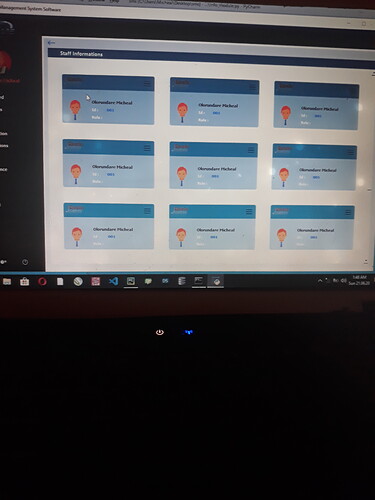
There are a few things making this behave properly:
setWidgetResizable(True)on theQScrollAreatells it to resize its internal widget to fill available space, while still allowing scrolling when the content exceeds the visible area. For more on howQScrollAreaworks, see our dedicated QScrollArea tutorial.- No
setGeometry()on inner widgets. Instead of fixing positions manually, we let theQGridLayoutcalculate where each group box goes. The layout grows as items are added, and the scroll area responds. setFixedSize(250, 130)on each group box gives them a consistent card-like appearance, but the frame and scroll content are not fixed — they grow as needed.
Summary
The main takeaways for building dynamic grid layouts in PyQt5:
Create GUI Applications with Python & Qt5 by Martin Fitzpatrick — (PyQt5 Edition) The hands-on guide to making apps with Python — Save time and build better with this book. Over 15K copies sold.
- Use layouts instead of
setGeometry()for anything that needs to adapt to varying content. If you're new to PyQt5 layouts, our PyQt5 layouts tutorial covers the different layout types in detail. - Put a
QGridLayoutinside aQScrollAreawithsetWidgetResizable(True)so the content scrolls naturally as it grows. - Calculate row and column from a single index using
//and%to handle any number of items, including non-multiples of the column count.
If you want to take your layouts further with custom-designed interfaces, you can also use Qt Designer to visually build your GUI layout and then populate it programmatically.
Comprehensive code review • Bugfixes & improvements • Maintainability advice and architecture improvements • Design and usability assessment • Suggestions and tips to expand your knowledge • Packaging and distribution help for Windows, Mac & Linux • Find out more.
