When building applications with multiple QTableView widgets, you'll often want to link them together — selecting a row in one table and having related rows automatically highlight in another. This is common when your tables share a key field that connects to a list of associated results.
You might expect that calling selectRow() in a loop would do the trick, but this convenience method only works for single-row selection. Each call replaces the previous selection instead of adding to it. To select multiple rows programmatically, you need to work with QItemSelection and QItemSelectionModel directly.
In this tutorial, you'll learn how to build up a multi-row selection and apply it to a QTableView, complete with a working example that links two tables together.
Building a multi-row selection with QItemSelection
A QItemSelection is essentially a collection of selection ranges. Each range is defined by a top-left and bottom-right QModelIndex. For selecting entire rows, you create one range per row by using the same index for both the top-left and bottom-right — the QItemSelectionModel.Rows flag takes care of extending the selection across all columns.
The approach you use is as follows:
from PyQt6.QtCore import QItemSelection, QItemSelectionModel

model = self.tableView.model()
selection = QItemSelection()

for row in rows_to_select:
    index = model.index(row, 0)
    selection.select(index, index)

mode = QItemSelectionModel.Select | QItemSelectionModel.Rows
self.tableView.selectionModel().select(selection, mode)
The QItemSelectionModel.Select flag tells the selection model to add these items to the selection (rather than replacing or toggling). The QItemSelectionModel.Rows flag extends each selected index to cover the entire row.
A complete working example: linked table views
Let's put this into practice with a full example. We'll create two tables — one listing stations and another listing results. When you select a station in the first table, all matching results in the second table will be highlighted automatically.
import sys

from PyQt6.QtCore import (
    QAbstractTableModel,
    QItemSelection,
    QItemSelectionModel,
    Qt,
)
from PyQt6.QtWidgets import (
    QAbstractItemView,
    QApplication,
    QHBoxLayout,
    QTableView,
    QWidget,
)


# Sample data: stations and their results linked by station_id.
STATIONS = [
    {"station_id": "ST001", "name": "River North"},
    {"station_id": "ST002", "name": "Lake View"},
    {"station_id": "ST003", "name": "South Creek"},
]

RESULTS = [
    {"station_id": "ST001", "parameter": "pH", "value": 7.2},
    {"station_id": "ST001", "parameter": "Temp", "value": 15.3},
    {"station_id": "ST002", "parameter": "pH", "value": 6.8},
    {"station_id": "ST002", "parameter": "Temp", "value": 18.1},
    {"station_id": "ST002", "parameter": "DO", "value": 8.5},
    {"station_id": "ST003", "parameter": "pH", "value": 7.0},
    {"station_id": "ST003", "parameter": "Temp", "value": 12.7},
    {"station_id": "ST003", "parameter": "DO", "value": 9.1},
]


class SimpleTableModel(QAbstractTableModel):
    """A simple table model backed by a list of dictionaries."""

    def __init__(self, data, parent=None):
        super().__init__(parent)
        self._data = data
        self._columns = list(data[0].keys()) if data else []

    def rowCount(self, parent=None):
        return len(self._data)

    def columnCount(self, parent=None):
        return len(self._columns)

    def data(self, index, role=Qt.DisplayRole):
        if role == Qt.DisplayRole:
            row = self._data[index.row()]
            col = self._columns[index.column()]
            return str(row[col])
        return None

    def headerData(self, section, orientation, role=Qt.DisplayRole):
        if role == Qt.DisplayRole and orientation == Qt.Horizontal:
            return self._columns[section]
        return None


class LinkedTablesDemo(QWidget):
    def __init__(self):
        super().__init__()
        self.setWindowTitle("Linked QTableView Selection")
        self.resize(800, 400)

        layout = QHBoxLayout(self)

        # Set up the station table (left side).
        self.station_model = SimpleTableModel(STATIONS)
        self.station_table = QTableView()
        self.station_table.setModel(self.station_model)
        self.station_table.setSelectionBehavior(
            QAbstractItemView.SelectRows
        )
        layout.addWidget(self.station_table)

        # Set up the results table (right side).
        self.result_model = SimpleTableModel(RESULTS)
        self.result_table = QTableView()
        self.result_table.setModel(self.result_model)
        self.result_table.setSelectionBehavior(
            QAbstractItemView.SelectRows
        )
        layout.addWidget(self.result_table)

        # Connect station selection changes to our handler.
        self.station_table.selectionModel().selectionChanged.connect(
            self.on_station_selected
        )

    def on_station_selected(self):
        """When station selection changes, select matching results."""
        # Get the selected station IDs from the station table.
        selected_indexes = (
            self.station_table.selectionModel().selectedRows(column=0)
        )
        selected_ids = [
            self.station_model.data(index, Qt.DisplayRole)
            for index in selected_indexes
        ]

        # Find which rows in the results table match.
        matching_rows = [
            row
            for row, record in enumerate(RESULTS)
            if record["station_id"] in selected_ids
        ]

        # Build a QItemSelection containing all matching rows.
        selection = QItemSelection()
        for row in matching_rows:
            index = self.result_model.index(row, 0)
            selection.select(index, index)

        # Apply the selection to the results table.
        mode = QItemSelectionModel.ClearAndSelect | QItemSelectionModel.Rows
        self.result_table.selectionModel().select(selection, mode)


if __name__ == "__main__":
    app = QApplication(sys.argv)
    window = LinkedTablesDemo()
    window.show()
    sys.exit(app.exec())
Run this and click on a station in the left table. The right table will immediately highlight all results belonging to that station.
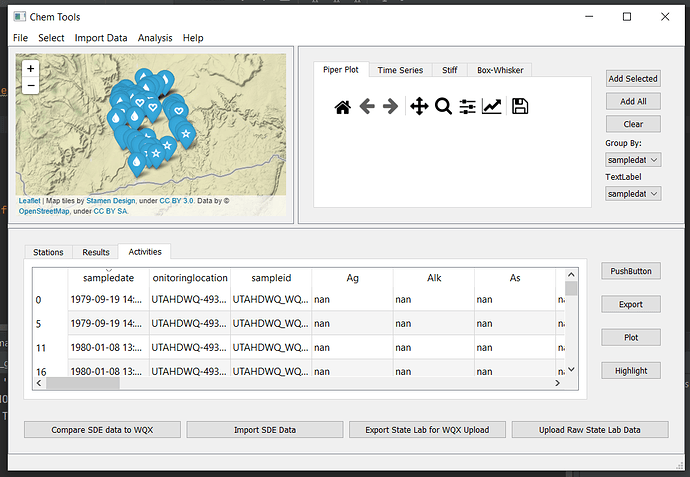
You can also hold Ctrl and click multiple stations — all associated results will be selected in the right table.
Create GUI Applications with Python & Qt6 by Martin Fitzpatrick — (PyQt6 Edition) The hands-on guide to making apps with Python — Save time and build better with this book. Over 15K copies sold.
How it works
Let's walk through the on_station_selected method step by step.
Getting the selected station IDs. We ask the station table's selection model for all selected rows, specifically column 0 (the station_id column). Then we extract the display text from each selected index:
selected_indexes = (
    self.station_table.selectionModel().selectedRows(column=0)
)
selected_ids = [
    self.station_model.data(index, Qt.DisplayRole)
    for index in selected_indexes
]
Finding matching rows. We loop through the results data and collect the row numbers where the station_id matches any of the selected IDs:
matching_rows = [
    row
    for row, record in enumerate(RESULTS)
    if record["station_id"] in selected_ids
]
Building the selection. For each matching row, we create a QModelIndex and add it to a QItemSelection. Using the same index for both the top-left and bottom-right of selection.select() creates a single-cell range, but the QItemSelectionModel.Rows flag will extend it across the full row when applied:
selection = QItemSelection()
for row in matching_rows:
    index = self.result_model.index(row, 0)
    selection.select(index, index)
Applying the selection. Finally, we pass the accumulated selection to the result table's selection model. The ClearAndSelect flag clears any previous selection first, so the results table always reflects only the currently selected stations:
mode = QItemSelectionModel.ClearAndSelect | QItemSelectionModel.Rows
self.result_table.selectionModel().select(selection, mode)
If you wanted to add to an existing selection instead of replacing it, you'd use QItemSelectionModel.Select without the Clear part.
Selection mode flags
The QItemSelectionModel provides several flags you can combine to control selection behavior:
| Flag | Effect |
|---|---|
Select |
Add the specified items to the current selection |
Deselect |
Remove the specified items from the current selection |
Toggle |
Toggle the selection state of the specified items |
Clear |
Clear the existing selection before applying |
ClearAndSelect |
Shorthand for Clear with Select |
Rows |
Extend selection to cover entire rows |
Columns |
Extend selection to cover entire columns |
You combine these with the | operator. For example, QItemSelectionModel.Select | QItemSelectionModel.Rows adds full rows to the existing selection without clearing it first.
Using this with pandas DataFrames
If you're using a pandas-backed table model (like the one from our QTableView with pandas tutorial), the approach is the same. The main thing to watch out for is making sure you use positional row numbers (0, 1, 2, ...) when creating QModelIndex objects, since that's what the model expects. If your DataFrame has a non-default index, use df.index.get_loc() or reset the index to avoid mismatches.
Here's a quick sketch of how you'd adapt the matching step for pandas:
# Assuming self.result_model._data is a pandas DataFrame.
df = self.result_model._data
matching = df[df["station_id"].isin(selected_ids)]

selection = QItemSelection()
for row_position in range(len(df)):
    if df.index[row_position] in matching.index:
        index = self.result_model.index(row_position, 0)
        selection.select(index, index)
The rest of the selection logic stays the same.
Summary
When you need to select multiple rows in a QTableView from code, the selectRow() convenience method won't get you there — it's designed for single-row selection and resets the selection each time. Instead, build a QItemSelection with ranges for each row you want, and then apply it through the view's QItemSelectionModel with the appropriate flags.
This technique makes it straightforward to link multiple table views together, providing a smooth and responsive experience where selecting items in one table automatically highlights related data in another.

