You've got data coming back from a database query as a list of tuples, and you want to show it in a table inside your PyQt6 application. QTableWidget is a great fit for this — it gives you a ready-made table you can fill with data without needing to set up a custom model.
In this tutorial, we'll walk through how to take query results (a list of tuples) and display them in a QTableWidget, complete with column headers and a button to trigger the display.
Setting up QTableWidget with data
Let's start with the basics. A QTableWidget is a table where each cell holds a QTableWidgetItem. To populate it, you need to:
- Set the number of rows and columns on the table.
- Loop through your data and create a
QTableWidgetItemfor each value. - Place each item in the correct row and column.
Here's a minimal example that displays a hardcoded list of tuples — the same shape as your database results:
import sys
from PyQt6.QtWidgets import (
    QApplication, QMainWindow, QTableWidget,
    QTableWidgetItem, QVBoxLayout, QWidget,
)


data = [
    ("GR001", "ZTH", "2020-08-09 09:25", "PRG", "2020-08-09 10:55", "SX-DNH"),
    ("GR002", "PRG", "2020-08-09 18:30", "CFU", "2020-08-09 21:40", "SX-DNH"),
    ("GR003", "CFU", "2020-07-12 09:00", "EFL", "2020-07-12 09:20", "SX-DGA"),
]


class MainWindow(QMainWindow):
    def __init__(self):
        super().__init__()
        self.setWindowTitle("Flight Data")

        self.table = QTableWidget()
        self.table.setRowCount(len(data))
        self.table.setColumnCount(len(data[0]))

        for row_index, row_data in enumerate(data):
            for col_index, value in enumerate(row_data):
                self.table.setItem(
                    row_index, col_index, QTableWidgetItem(str(value))
                )

        layout = QVBoxLayout()
        layout.addWidget(self.table)

        container = QWidget()
        container.setLayout(layout)
        self.setCentralWidget(container)


app = QApplication(sys.argv)
window = MainWindow()
window.show()
sys.exit(app.exec())
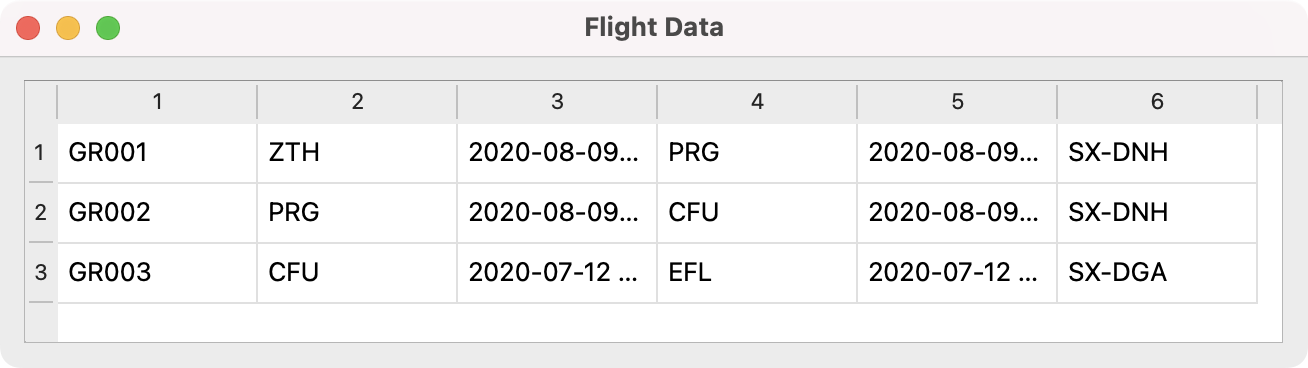
Run this and you'll see your data displayed in a table. Each value is converted to a string with str(value) — this handles datetime objects, numbers, and anything else that comes back from the database.
Adding column headers
A table without headers isn't very useful. You can set horizontal header labels using setHorizontalHeaderLabels(). If you know your column names (from your database schema), you can pass them directly:
headers = [
    "Flight ID", "Origin", "Departure",
    "Destination", "Arrival", "Aircraft",
]
self.table.setHorizontalHeaderLabels(headers)
If you're working with a database cursor, you can also pull the column names dynamically from the cursor's description attribute:
cursor.execute("SELECT * FROM Flight")
records = cursor.fetchall()
headers = [description[0] for description in cursor.description]
This means you don't need to hardcode column names — useful when querying different tables.

Purchasing Power Parity
Developers in [[ country ]] get [[ discount.discount_pc ]]% OFF on all books & courses with code [[ discount.coupon_code ]]Loading data on a button click
You mentioned wanting a button that loads the data when clicked. To do this, you create the QTableWidget and the QPushButton up front, then connect the button's clicked signal to a method that populates the table.
Here's a complete example showing this pattern. We're using hardcoded data here in place of a real database query, but you can swap in your cursor code directly:
import sys
import datetime
from PyQt6.QtWidgets import (
    QApplication, QMainWindow, QTableWidget,
    QTableWidgetItem, QVBoxLayout, QWidget, QPushButton,
)


class MainWindow(QMainWindow):
    def __init__(self):
        super().__init__()
        self.setWindowTitle("Flight Database Viewer")
        self.setFixedSize(800, 600)

        self.table = QTableWidget()
        self.load_button = QPushButton("Load Flight Data")
        self.load_button.clicked.connect(self.load_data)

        layout = QVBoxLayout()
        layout.addWidget(self.load_button)
        layout.addWidget(self.table)

        container = QWidget()
        container.setLayout(layout)
        self.setCentralWidget(container)

    def load_data(self):
        # Replace this with your actual database query:
        # cursor = cnx.cursor()
        # cursor.execute("SELECT * FROM Flight")
        # records = cursor.fetchall()
        # headers = [desc[0] for desc in cursor.description]

        # Simulated query results
        records = [
            (
                "GR001", "ZTH",
                datetime.datetime(2020, 8, 9, 9, 25),
                "PRG",
                datetime.datetime(2020, 8, 9, 10, 55),
                "SX-DNH",
            ),
            (
                "GR002", "PRG",
                datetime.datetime(2020, 8, 9, 18, 30),
                "CFU",
                datetime.datetime(2020, 8, 9, 21, 40),
                "SX-DNH",
            ),
            (
                "GR003", "CFU",
                datetime.datetime(2020, 7, 12, 9, 0),
                "EFL",
                datetime.datetime(2020, 7, 12, 9, 20),
                "SX-DGA",
            ),
            (
                "GR004", "CFU",
                datetime.datetime(2020, 8, 15, 11, 30),
                "ZTH",
                datetime.datetime(2020, 8, 15, 12, 0),
                "SX-DGF",
            ),
            (
                "GR005", "EFL",
                datetime.datetime(2020, 8, 20, 18, 5),
                "ZTH",
                datetime.datetime(2020, 8, 20, 18, 30),
                "SX-DVI",
            ),
        ]
        headers = [
            "Flight ID", "Origin", "Departure",
            "Destination", "Arrival", "Aircraft",
        ]

        self.populate_table(records, headers)

    def populate_table(self, records, headers):
        self.table.setRowCount(len(records))
        self.table.setColumnCount(len(headers))
        self.table.setHorizontalHeaderLabels(headers)

        for row_index, row_data in enumerate(records):
            for col_index, value in enumerate(row_data):
                item = QTableWidgetItem(str(value))
                self.table.setItem(row_index, col_index, item)

        # Resize columns to fit the content
        self.table.resizeColumnsToContents()


app = QApplication(sys.argv)
window = MainWindow()
window.show()
sys.exit(app.exec())
When you click the "Load Flight Data" button, the table fills with the flight records. The populate_table method is separate from the loading logic, so you can reuse it for different queries — just pass in different records and headers.
Formatting datetime values
You'll notice that str(datetime.datetime(2020, 8, 9, 9, 25)) produces "2020-08-09 09:25:00". If you'd like a cleaner format, you can use strftime to control how dates appear:
for col_index, value in enumerate(row_data):
    if isinstance(value, datetime.datetime):
        display_value = value.strftime("%Y-%m-%d %H:%M")
    else:
        display_value = str(value)
    item = QTableWidgetItem(display_value)
    self.table.setItem(row_index, col_index, item)
This gives you "2020-08-09 09:25" instead of "2020-08-09 09:25:00".
Reusing the table for multiple queries
Since you mentioned needing to display different tables, you can add multiple buttons — each one calling the same populate_table method with different data. Here's how that might look:
self.flight_button = QPushButton("Load Flights")
self.flight_button.clicked.connect(self.load_flights)

self.aircraft_button = QPushButton("Load Aircraft")
self.aircraft_button.clicked.connect(self.load_aircraft)
Each load_* method runs its own query and calls self.populate_table(records, headers). Because populate_table sets the row count, column count, and headers each time it's called, the table resets cleanly for each new dataset.
Complete working example
Here's the full application with two buttons to demonstrate switching between different datasets:
import sys
import datetime
from PyQt6.QtWidgets import (
    QApplication, QMainWindow, QTableWidget,
    QTableWidgetItem, QVBoxLayout, QHBoxLayout,
    QWidget, QPushButton,
)


class MainWindow(QMainWindow):
    def __init__(self):
        super().__init__()
        self.setWindowTitle("Database Table Viewer")
        self.setFixedSize(900, 600)

        self.table = QTableWidget()

        self.flight_button = QPushButton("Load Flights")
        self.flight_button.clicked.connect(self.load_flights)

        self.aircraft_button = QPushButton("Load Aircraft")
        self.aircraft_button.clicked.connect(self.load_aircraft)

        button_layout = QHBoxLayout()
        button_layout.addWidget(self.flight_button)
        button_layout.addWidget(self.aircraft_button)

        layout = QVBoxLayout()
        layout.addLayout(button_layout)
        layout.addWidget(self.table)

        container = QWidget()
        container.setLayout(layout)
        self.setCentralWidget(container)

    def load_flights(self):
        # Replace with: cursor.execute("SELECT * FROM Flight")
        records = [
            (
                "GR001", "ZTH",
                datetime.datetime(2020, 8, 9, 9, 25),
                "PRG",
                datetime.datetime(2020, 8, 9, 10, 55),
                "SX-DNH",
            ),
            (
                "GR002", "PRG",
                datetime.datetime(2020, 8, 9, 18, 30),
                "CFU",
                datetime.datetime(2020, 8, 9, 21, 40),
                "SX-DNH",
            ),
            (
                "GR003", "CFU",
                datetime.datetime(2020, 7, 12, 9, 0),
                "EFL",
                datetime.datetime(2020, 7, 12, 9, 20),
                "SX-DGA",
            ),
            (
                "GR004", "CFU",
                datetime.datetime(2020, 8, 15, 11, 30),
                "ZTH",
                datetime.datetime(2020, 8, 15, 12, 0),
                "SX-DGF",
            ),
            (
                "GR005", "EFL",
                datetime.datetime(2020, 8, 20, 18, 5),
                "ZTH",
                datetime.datetime(2020, 8, 20, 18, 30),
                "SX-DVI",
            ),
        ]
        headers = [
            "Flight ID", "Origin", "Departure",
            "Destination", "Arrival", "Aircraft",
        ]
        self.populate_table(records, headers)

    def load_aircraft(self):
        # Replace with: cursor.execute("SELECT * FROM Aircraft")
        records = [
            ("SX-DNH", "ATR 42-500", 48, "Olympic Air"),
            ("SX-DGA", "DHC-8-400", 78, "Olympic Air"),
            ("SX-DGF", "DHC-8-400", 78, "Olympic Air"),
            ("SX-DVI", "ATR 72-600", 72, "Olympic Air"),
            ("SX-DNF", "ATR 42-500", 48, "Olympic Air"),
        ]
        headers = ["Registration", "Type", "Capacity", "Operator"]
        self.populate_table(records, headers)

    def populate_table(self, records, headers):
        self.table.clear()
        self.table.setRowCount(len(records))
        self.table.setColumnCount(len(headers))
        self.table.setHorizontalHeaderLabels(headers)

        for row_index, row_data in enumerate(records):
            for col_index, value in enumerate(row_data):
                if isinstance(value, datetime.datetime):
                    display_value = value.strftime("%Y-%m-%d %H:%M")
                else:
                    display_value = str(value)
                item = QTableWidgetItem(display_value)
                self.table.setItem(row_index, col_index, item)

        self.table.resizeColumnsToContents()


app = QApplication(sys.argv)
window = MainWindow()
window.show()
sys.exit(app.exec())
Click "Load Flights" and you'll see the flight schedule. Click "Load Aircraft" and the same table switches to show aircraft data with different columns. The populate_table method handles everything — clearing the old data, setting new dimensions, and filling in the cells.
To connect this to your actual database, replace the hardcoded records lists with your cursor calls:
def load_flights(self):
    cursor = cnx.cursor()
    cursor.execute("SELECT * FROM Flight")
    records = cursor.fetchall()
    headers = [desc[0] for desc in cursor.description]
    self.populate_table(records, headers)
Going further with QTableView and models
QTableWidget works well for straightforward cases like this. If your application grows more complex — for example, if you need editable tables, sorting, filtering, or very large datasets — you might want to look into QTableView with a custom model. The model/view architecture gives you more control and better performance with large amounts of data.
You can read more about that approach in these tutorials:
For your university project though, QTableWidget with the populate_table pattern shown here should serve you well. It's simple, readable, and easy to extend as you add more tables to your application.
Bring Your PyQt/PySide Application to Market — Specialized launch support for scientific and engineering software built using Python & Qt.
