Glenn Breeden wrote:
I am learning Python and Qt and am interested in creating an app to take the place of a MS Word form that I use for my work service calls. Ideally, I'd like for it to be connected to a database that would allow me to populate fields from the source via drop down boxes. I also need date pickers and text fields which would be searchable at a later time. My hope here is that someone can point me in the right direction as to how to do this or if it's even possible.
This is definitely possible with Qt, and actually fairly straightforward if you use Qt's SQL models and a widget mapper. There are some examples in the latest update to the book, and I'll be adding more here — but in the meantime this should give you an idea of how to create a PyQt5 database form.
Building a PyQt5 Data Entry Form with SQLite
The key components for building a database-connected data entry form in PyQt5 are:
QSqlTableModel— provides an editable data model for a single SQLite database tableQDataWidgetMapper— maps database columns to form widgets automatically- Form widgets like
QLineEdit,QComboBox, andQDateTimeEditfor user input
Below is a complete working example that creates a data entry form connected to an SQLite database. The form includes text fields, a combo box (dropdown), and a date picker — all linked to the database via QDataWidgetMapper. If you're new to PyQt5 widgets, you may want to review the basic widgets tutorial first.
import sys

from PyQt5.QtCore import QSize, Qt
from PyQt5.QtSql import QSqlDatabase, QSqlTableModel
from PyQt5.QtWidgets import (
    QApplication,
    QComboBox,
    QDataWidgetMapper,
    QDateTimeEdit,
    QFormLayout,
    QHBoxLayout,
    QLabel,
    QLineEdit,
    QMainWindow,
    QPushButton,
    QVBoxLayout,
    QWidget,
)

db = QSqlDatabase("QSQLITE")
db.setDatabaseName("test.sqlite")
# Create some dummy data.
db.open()
db.exec_(
    "create table if not exists mytable (title string, kind string, created datetime);"
)
db.exec_(
    "insert into mytable (title, kind, created) values ('first title', 'Two', datetime('2020-06-02 12:45:11') );"
)
db.exec_(
    "insert into mytable (title, kind, created) values ('2nd item', 'Three', datetime('2019-06-02 12:45:11') );"
)


class MainWindow(QMainWindow):
    def __init__(self):
        super().__init__()

        form = QFormLayout()

        # Define fields.
        self.title = QLineEdit()

        self.kind = QComboBox()
        self.kind.addItems(["One", "Two", "Three"])

        self.date = QDateTimeEdit()

        form.addRow(QLabel("Title"), self.title)
        form.addRow(QLabel("Type of item"), self.kind)
        form.addRow(QLabel("Date"), self.date)

        self.model = QSqlTableModel(db=db)

        self.mapper = QDataWidgetMapper()  # Syncs widgets to the database.
        self.mapper.setModel(self.model)

        self.mapper.addMapping(self.title, 0)  # Map to column number
        self.mapper.addMapping(self.kind, 1)
        self.mapper.addMapping(self.date, 2)

        self.model.setTable("mytable")
        self.model.select()  # Query the database

        self.mapper.toFirst()  # Jump to first record

        self.setMinimumSize(QSize(400, 400))

        controls = QHBoxLayout()

        prev_rec = QPushButton("Previous")
        prev_rec.clicked.connect(self.mapper.toPrevious)

        next_rec = QPushButton("Next")
        next_rec.clicked.connect(self.mapper.toNext)

        save_rec = QPushButton("Save Changes")
        save_rec.clicked.connect(self.mapper.submit)

        controls.addWidget(prev_rec)
        controls.addWidget(next_rec)
        controls.addWidget(save_rec)

        layout = QVBoxLayout()

        layout.addLayout(form)
        layout.addLayout(controls)

        widget = QWidget()
        widget.setLayout(layout)
        self.setCentralWidget(widget)


app = QApplication(sys.argv)
window = MainWindow()
window.show()
app.exec_()
How the PyQt5 Database Form Works
This produces the following form which is linked to the SQLite database. The database is pre-populated with some dummy data. You can navigate between records using the Previous and Next buttons, and save any edits back to the database with Save Changes.
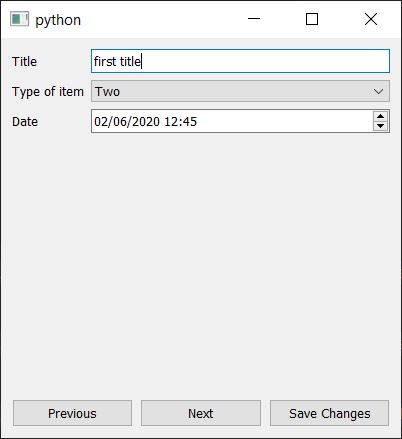
The QDataWidgetMapper handles all the synchronization between the form widgets and the underlying QSqlTableModel. When you navigate to a new record, the widgets update automatically. When you click save, the mapper submits the current widget values back to the model, which writes them to the SQLite database. The button clicks are connected using Qt's signals and slots mechanism.
This pattern makes it easy to extend your form — just add new widgets, map them to additional database columns, and QDataWidgetMapper takes care of the rest.
Key Takeaways for Building Database Forms in PyQt5
- Use
QSqlTableModelto connect your PyQt5 application to an SQLite database table without writing raw SQL queries for reads and updates. This follows the same Model/View architecture used throughout Qt. - Use
QDataWidgetMapperto automatically synchronize form widgets (QLineEdit,QComboBox,QDateTimeEdit) with database columns — no manual data loading or saving required. - Add record navigation by connecting Previous and Next buttons to
QDataWidgetMapper.toPreviousandQDataWidgetMapper.toNext. - Save changes by calling
mapper.submit(), which writes the current form values back to the database through the model. - Extend easily by adding more widgets and mapping them to additional columns — the mapper pattern scales well for larger forms with many fields. For more complex layouts, consider using Qt Designer to design your form visually.
Packaging Python Applications with PyInstaller by Martin Fitzpatrick — This step-by-step guide walks you through packaging your own Python applications from simple examples to complete installers and signed executables.
