Before you start building Python GUI applications with Tkinter, you will need a working installation of Python & Tkinter on your computer. Helpfully, Tkinter is included by default with every Python installation on Windows, so you don't need to install it separately. Just download and install Python and you will have Tkinter available to you.
See below for step-by-step instructions on how to install Python and verify Tkinter is working on your Windows machine.
Installing Python on Windows
Go to the official Python website Windows downloads page and download one of the stable releases of Python.
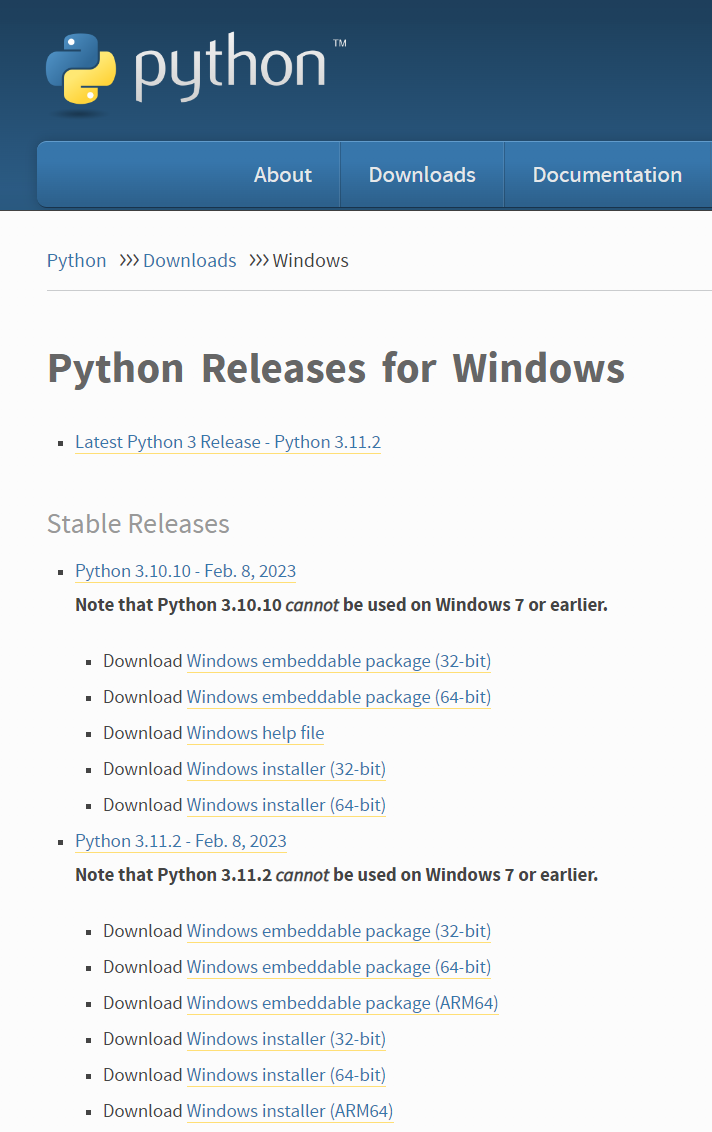 You can download any of the stable versions.
You typically want to download the Windows Installer (64-bit) for modern hardware. Unless you know you need the 32-bit version, try the 64-bit first.
Once the download is complete, double-click the installer to launch it.
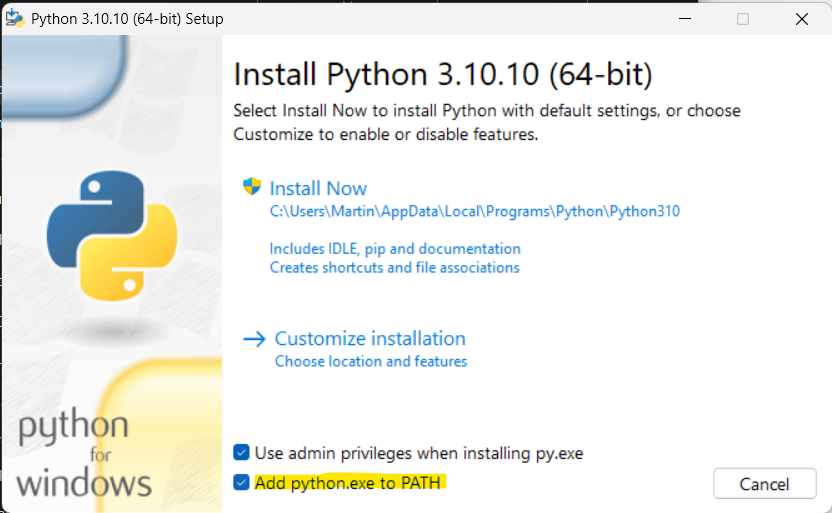 The Python for Windows installer. Ensure Add python.exe to PATH is checked.
You'll see the installer welcome screen which describes what the installer will do.
Make sure that Add python.exe to PATH is checked in the installer. This makes it easier to use Python from the command prompt -- you just need to enter "python" to start, rather than the full path to the executable.

Purchasing Power Parity
Developers in [[ country ]] get [[ discount.discount_pc ]]% OFF on all books & courses with code [[ discount.coupon_code ]]When you are ready to begin the installation, click Install Now.
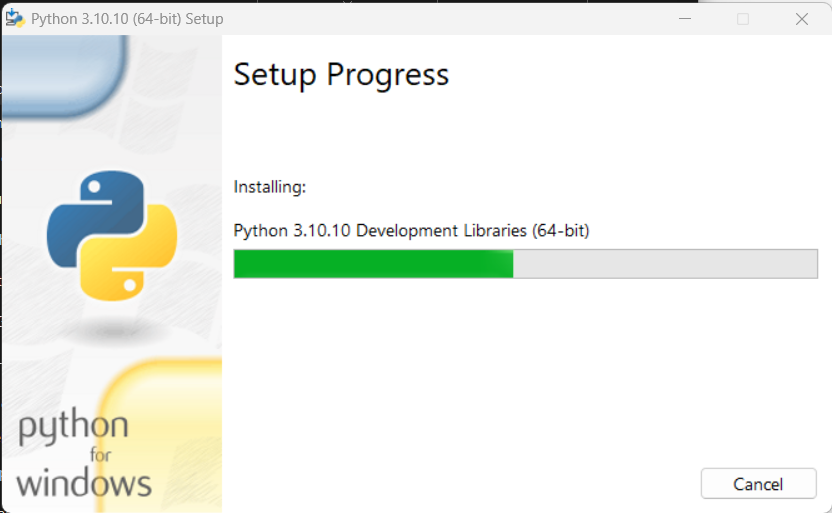 Installing Python.
The install will proceed as normal, installing all the required libraries (including Tcl/Tk for Tkinter). Once complete you can exit the installer.
Verify Tkinter Is Installed on Windows
After installing Python, you should verify that Tkinter is available and working correctly. Open a command prompt and start Python by entering python. This will start the Python REPL, where you can enter interactive Python code.
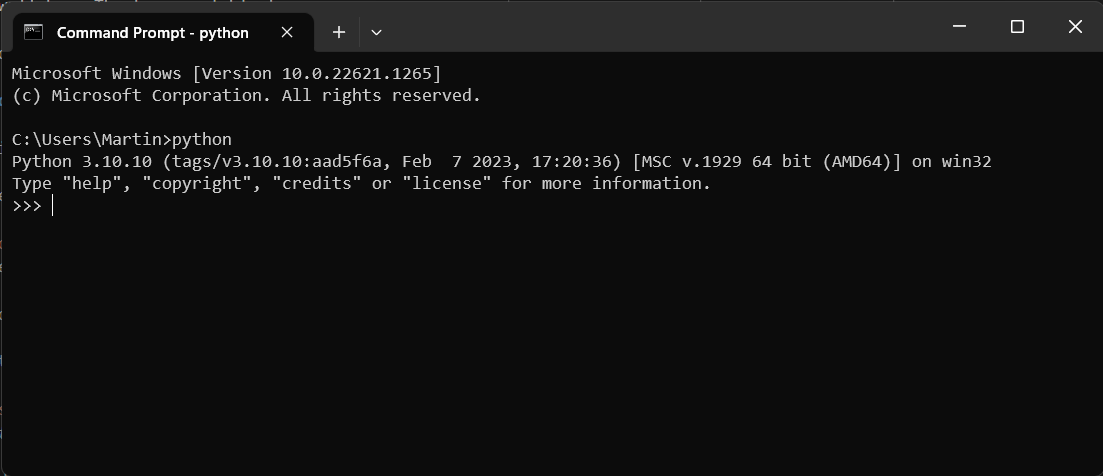 The Python REPL for our newly installed Python installation.
You can enter from tkinter import * to confirm that Tkinter has been installed, then create a window with window = Tk() to confirm it is usable.
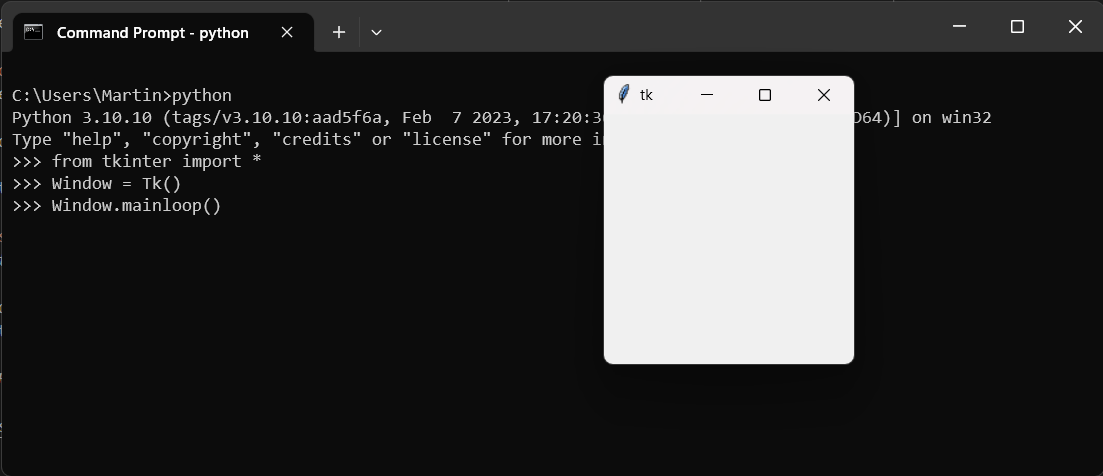 Importing Tkinter and creating a window in the Python REPL.
If from tkinter import * runs without errors, Tkinter is installed and ready to use. If you see a ModuleNotFoundError, your Python installation may be missing the Tcl/Tk component — try reinstalling Python and ensuring the default options are selected.
Run Your First Tkinter Application
Now that Tkinter is installed and verified, you can create your first Python GUI application. You can run Python scripts from the command prompt by entering python followed by the script name. Create a file in your code editor and enter the following simple Tkinter example:
from tkinter import *

window = Tk()
window.mainloop()
Save the file as my_tkinter_app.py in your home folder (e.g. C:\Users\<your username>). You can now launch this from the command prompt — as long as you are in the same folder as the script — using python my_tkinter_app.py.
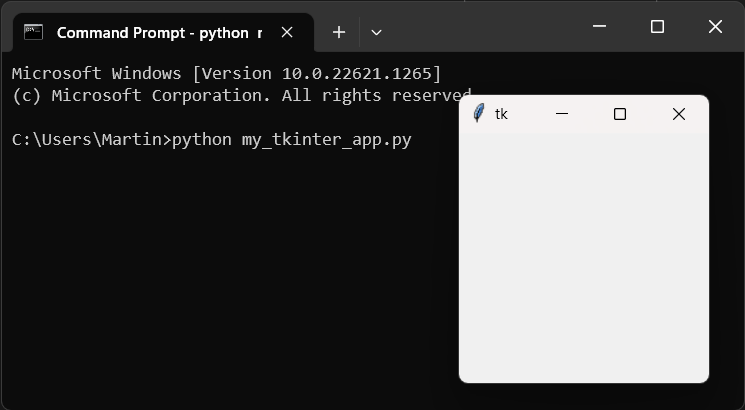 Running a Tkinter script from the command line.
Troubleshooting Common Tkinter Installation Issues on Windows
If you run into problems getting Tkinter to work, here are a few common issues and fixes:
ModuleNotFoundError: No module named 'tkinter'— This usually means Tkinter's Tcl/Tk component wasn't included during installation. Reinstall Python using the official installer and make sure all default options are checked.- Python not found in the command prompt — If typing
pythongives an error, you likely didn't check "Add python.exe to PATH" during installation. You can either reinstall Python with this option enabled or manually add Python to your system PATH. - Multiple Python versions installed — If you have more than one Python version on your system, make sure you're running the correct one. Use
python --versionto check which version is active.
Next Steps
That's it! You now have Tkinter installed and working on Windows. You can continue to the Tkinter tutorial to start creating your own Tkinter applications!
PyQt/PySide Office Hours 1:1 with Martin Fitzpatrick — Save yourself time and frustration. Get one on one help with your projects. Bring issues, bugs and questions about usability to architecture and maintainability, and leave with solutions.
