One very common issue when you start creating GUI applications with Python & Qt is having your widgets either disappear or start popping out of your interface as independent windows. This is pretty confusing if you don't understand why it happens, but once you do it's usually very easy to fix.
Why do PyQt/PySide widgets appear as separate windows?
In Qt, every widget without a parent becomes its own top-level window. When you create a widget but forget to set a parent or add it to a layout, Qt treats it as an independent floating window rather than embedding it inside your main application window.
The key points --
- Any widget without a parent is a window. If you create a widget but don't set a parent it will become a separate window.
- Widgets without parents are hidden by default (i.e. any windows) and remain hidden until they are shown either by you, or automatically by Qt (for example when selecting tabs in a
QTabWidget). - Adding widgets to layouts sets their parent. Widgets not in layouts must have parents set explicitly.
- Removing a widget from a layout doesn't remove its parent.
- You can remove the parent from a widget by setting the parent to
None. This will turn it into a window!
How to fix widgets appearing as separate windows in PyQt/PySide
The fix is straightforward: make sure every widget you create is either added to a layout or has a parent widget set. The most reliable approach is to always use layouts to organize your widgets. When you add a widget to a layout using addWidget(), Qt automatically sets the correct parent for you.
If you're dynamically creating widgets, ensure you pass the parent widget when constructing them, or immediately add them to an existing layout on your window.
Example: widget parent and layout behavior
Below is a small example to demonstrate these effects. We create a window, add a layout and a widget.
- PyQt5
- PyQt6
- PySide2
- PySide6
import sys
from PyQt5.QtWidgets import QWidget, QVBoxLayout, QPushButton, QLabel, QApplication

class Window(QWidget):

    def __init__(self):
        super().__init__()

        # This is the widget that we will experiment with: note that we don't
        # set a parent, and don't add it to the layout.
        self.mywidget = QLabel("Hello")
        self.mywidget.show()  # We need to show it (or focus it) to make it visible.

        add_parent = QPushButton("Add parent")
        add_parent.clicked.connect(self.add_parent)

        remove_parent = QPushButton("Remove parent")
        remove_parent.clicked.connect(self.remove_parent)

        add_layout = QPushButton("Add layout")
        add_layout.clicked.connect(self.add_layout)

        remove_layout = QPushButton("Remove layout")
        remove_layout.clicked.connect(self.remove_layout)

        self.vlayout = QVBoxLayout()

        self.vlayout.addWidget(add_parent)
        self.vlayout.addWidget(remove_parent)
        self.vlayout.addWidget(add_layout)
        self.vlayout.addWidget(remove_layout)

        self.setLayout(self.vlayout)

    def add_parent(self):
        self.mywidget.setParent(self)
        self.mywidget.move(0,0)
        self.mywidget.show()
        print("Added parent, parent is:", self.mywidget.parent())

    def remove_parent(self):
        self.mywidget.setParent(None)
        self.mywidget.show()
        print("Removed parent, parent is:", self.mywidget.parent())

    def add_layout(self):
        self.vlayout.addWidget(self.mywidget)
        print("Added layout, parent is:", self.mywidget.parent())

    def remove_layout(self):
        self.vlayout.removeWidget(self.mywidget)
        print("Removed layout, parent is:", self.mywidget.parent())

app = QApplication(sys.argv)

w = Window()
w.show()

app.exec()
import sys
from PyQt6.QtWidgets import QWidget, QVBoxLayout, QPushButton, QLabel, QApplication


class Window(QWidget):

    def __init__(self):
        super().__init__()

        # This is the widget that we will experiment with: note that we don't
        # set a parent, and don't add it to the layout.
        self.mywidget = QLabel("Hello")
        self.mywidget.show()  # We need to show it (or focus it) to make it visible.

        add_parent = QPushButton("Add parent")
        add_parent.clicked.connect(self.add_parent)

        remove_parent = QPushButton("Remove parent")
        remove_parent.clicked.connect(self.remove_parent)

        add_layout = QPushButton("Add layout")
        add_layout.clicked.connect(self.add_layout)

        remove_layout = QPushButton("Remove layout")
        remove_layout.clicked.connect(self.remove_layout)

        self.vlayout = QVBoxLayout()

        self.vlayout.addWidget(add_parent)
        self.vlayout.addWidget(remove_parent)
        self.vlayout.addWidget(add_layout)
        self.vlayout.addWidget(remove_layout)

        self.setLayout(self.vlayout)

    def add_parent(self):
        self.mywidget.setParent(self)
        self.mywidget.move(0,0)
        self.mywidget.show()
        print("Added parent, parent is:", self.mywidget.parent())

    def remove_parent(self):
        self.mywidget.setParent(None)
        self.mywidget.show()
        print("Removed parent, parent is:", self.mywidget.parent())

    def add_layout(self):
        self.vlayout.addWidget(self.mywidget)
        print("Added layout, parent is:", self.mywidget.parent())

    def remove_layout(self):
        self.vlayout.removeWidget(self.mywidget)
        print("Removed layout, parent is:", self.mywidget.parent())


app = QApplication(sys.argv)

w = Window()
w.show()

app.exec()
import sys
from PySide2.QtWidgets import QWidget, QVBoxLayout, QPushButton, QLabel, QApplication


class Window(QWidget):

    def __init__(self):
        super().__init__()

        # This is the widget that we will experiment with: note that we don't
        # set a parent, and don't add it to the layout.
        self.mywidget = QLabel("Hello")
        self.mywidget.show()  # We need to show it (or focus it) to make it visible.

        add_parent = QPushButton("Add parent")
        add_parent.clicked.connect(self.add_parent)

        remove_parent = QPushButton("Remove parent")
        remove_parent.clicked.connect(self.remove_parent)

        add_layout = QPushButton("Add layout")
        add_layout.clicked.connect(self.add_layout)

        remove_layout = QPushButton("Remove layout")
        remove_layout.clicked.connect(self.remove_layout)

        self.vlayout = QVBoxLayout()

        self.vlayout.addWidget(add_parent)
        self.vlayout.addWidget(remove_parent)
        self.vlayout.addWidget(add_layout)
        self.vlayout.addWidget(remove_layout)

        self.setLayout(self.vlayout)

    def add_parent(self):
        self.mywidget.setParent(self)
        self.mywidget.move(0,0)
        self.mywidget.show()
        print("Added parent, parent is:", self.mywidget.parent())

    def remove_parent(self):
        self.mywidget.setParent(None)
        self.mywidget.show()
        print("Removed parent, parent is:", self.mywidget.parent())

    def add_layout(self):
        self.vlayout.addWidget(self.mywidget)
        print("Added layout, parent is:", self.mywidget.parent())

    def remove_layout(self):
        self.vlayout.removeWidget(self.mywidget)
        print("Removed layout, parent is:", self.mywidget.parent())

app = QApplication(sys.argv)

w = Window()
w.show()

app.exec_()
import sys
from PySide6.QtWidgets import QWidget, QVBoxLayout, QPushButton, QLabel, QApplication


class Window(QWidget):

    def __init__(self):
        super().__init__()

        # This is the widget that we will experiment with: note that we don't
        # set a parent, and don't add it to the layout.
        self.mywidget = QLabel("Hello")
        self.mywidget.show()  # We need to show it (or focus it) to make it visible.

        add_parent = QPushButton("Add parent")
        add_parent.clicked.connect(self.add_parent)

        remove_parent = QPushButton("Remove parent")
        remove_parent.clicked.connect(self.remove_parent)

        add_layout = QPushButton("Add layout")
        add_layout.clicked.connect(self.add_layout)

        remove_layout = QPushButton("Remove layout")
        remove_layout.clicked.connect(self.remove_layout)

        self.vlayout = QVBoxLayout()

        self.vlayout.addWidget(add_parent)
        self.vlayout.addWidget(remove_parent)
        self.vlayout.addWidget(add_layout)
        self.vlayout.addWidget(remove_layout)

        self.setLayout(self.vlayout)

    def add_parent(self):
        self.mywidget.setParent(self)
        self.mywidget.move(0,0)
        self.mywidget.show()
        print("Added parent, parent is:", self.mywidget.parent())

    def remove_parent(self):
        self.mywidget.setParent(None)
        self.mywidget.show()
        print("Removed parent, parent is:", self.mywidget.parent())

    def add_layout(self):
        self.vlayout.addWidget(self.mywidget)
        print("Added layout, parent is:", self.mywidget.parent())

    def remove_layout(self):
        self.vlayout.removeWidget(self.mywidget)
        print("Removed layout, parent is:", self.mywidget.parent())

app = QApplication(sys.argv)

w = Window()
w.show()

app.exec_()
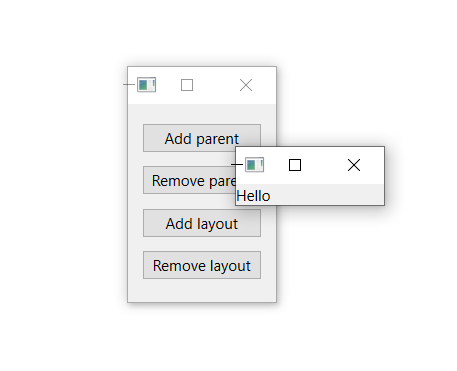
In the initial state the widget isn't added to any layout and has no parent, so when the application is run you'll actually see two floating windows. Push the control buttons to experiment with adding the widget to the layout, setting a parent, clearing the parent and removing it from the layout.
Bring Your PyQt/PySide Application to Market — Specialized launch support for scientific and engineering software built using Python & Qt.
Each time the state changes the current parent will be printed to the console. Notice that when you add the widget to the layout, the widget receives the Window as its parent. This is the normal behavior in Qt: adding a widget to a layout will set its parent to the widget on which the layout is applied (the container widget). In this case this is the Window itself.
Added layout, parent is: <__main__.Window(0x15413656090) at 0x000001542CB98688>
What happens when you remove a widget from a layout?
If you remove the widget from the layout, its parent is not automatically cleared. The widget will remain inside the window, near its original position. But the layout will re-lay the other items over it.
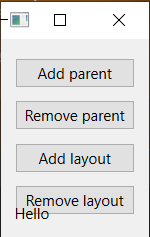
If you remove the parent the widget will return to its floating state.
Why do widgets disappear when setting a parent?
Note that when setting the parent on the window we also call .move(0, 0) to move it to a specific point relative to the parent window. This is necessary to ensure we can see the widget: if you remove this, setting the parent will just make the widget disappear. If you have widgets disappearing in your apps, this is a good sign that they have a parent set but are not properly positioned or added to a layout. As a general rule, always use layouts to manage widget positioning and avoid hitting these kinds of issues!
Summary
To prevent widgets from appearing as separate windows or disappearing in your PyQt or PySide applications:
- Always add widgets to a layout using
addWidget()— this automatically sets the correct parent. - If you create widgets dynamically, pass the parent widget in the constructor (e.g.,
QLabel("Hello", self)). - Never call
setParent(None)on a widget unless you intentionally want it to become a separate window. - Use layouts like
QVBoxLayout,QHBoxLayout, orQGridLayoutto manage all widget positioning.
Understanding the Qt parent-child relationship is fundamental to building Python GUI applications that work as expected. Once you grasp this concept, you'll avoid one of the most common beginner pitfalls in PyQt and PySide development. For more on working with multiple windows or getting started with basic widgets, check out our dedicated tutorials.

