How do I create a settings/preferences window in PyQt or PySide, with grouped options like radio buttons, and save those settings so they persist between sessions?
Most applications need a way for users to configure preferences — things like choosing a theme, toggling features on or off, or picking a default behavior. In Qt, the standard approach is to build a settings dialog using QDialog, organize options with QGroupBox, and persist those choices with QSettings.
In this tutorial, we'll build a settings window from scratch. We'll start with a simple dialog, add grouped radio buttons, and then wire everything up so settings are saved and restored between sessions. By the end, you'll have a reusable pattern you can adapt for your own applications.
- Starting with a basic dialog
- Adding grouped radio buttons with QGroupBox
- Reading settings from the dialog
- Persisting settings with QSettings
- Initializing the dialog from saved settings
- Saving settings on accept
- Mapping widgets to settings automatically
- Complete working example
- A note on QSettings and types
- Where to go from here
Starting with a basic dialog
A settings window is a secondary window — it opens on top of your main application window, the user makes their choices, and then they confirm or cancel. QDialog is the perfect fit for this. It gives you built-in support for "accepted" and "rejected" outcomes, and it can be shown modally (blocking interaction with the main window until the user is done). For more on using dialogs in your applications, see our tutorial on PyQt6 dialogs.
Here's a minimal settings dialog with OK and Cancel buttons:
import sys

from PyQt6.QtWidgets import (
    QApplication,
    QDialog,
    QDialogButtonBox,
    QLabel,
    QVBoxLayout,
)


class SettingsDialog(QDialog):
    def __init__(self, parent=None):
        super().__init__(parent)

        self.setWindowTitle("Settings")

        buttons = (
            QDialogButtonBox.StandardButton.Ok
            | QDialogButtonBox.StandardButton.Cancel
        )

        button_box = QDialogButtonBox(buttons)
        button_box.accepted.connect(self.accept)
        button_box.rejected.connect(self.reject)

        layout = QVBoxLayout()
        layout.addWidget(QLabel("Settings will go here."))
        layout.addWidget(button_box)
        self.setLayout(layout)


app = QApplication(sys.argv)

dialog = SettingsDialog()
dialog.show()

app.exec()
Run this and you'll see a small dialog with a label and two buttons. Clicking OK fires the accepted signal and closes the dialog, while Cancel fires rejected. The dialog's .exec() method returns either QDialog.DialogCode.Accepted or QDialog.DialogCode.Rejected, which we'll use later to decide whether to save settings.
Adding grouped radio buttons with QGroupBox
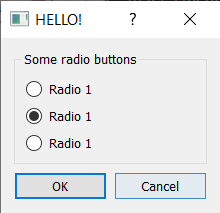
Settings often come in groups — for example, a set of mutually exclusive options like "Light theme", "Dark theme", and "System default". QGroupBox draws a labeled border around a set of widgets, making it visually clear that they belong together. When you put QRadioButton widgets inside a group box, Qt automatically makes them mutually exclusive within that group.
The way it works: QGroupBox is itself a widget, so you create a layout, add your radio buttons to that layout, and then set the layout on the group box. The group box then goes into the dialog's main layout like any other widget. If you're new to arranging widgets in Qt, our guide to PyQt6 layouts covers the fundamentals.
import sys

from PyQt6.QtWidgets import (
    QApplication,
    QDialog,
    QDialogButtonBox,
    QGroupBox,
    QRadioButton,
    QVBoxLayout,
)


class SettingsDialog(QDialog):
    def __init__(self, parent=None):
        super().__init__(parent)

        self.setWindowTitle("Settings")

        # Theme options
        theme_group = QGroupBox("Theme")
        self.theme_light = QRadioButton("Light")
        self.theme_dark = QRadioButton("Dark")
        self.theme_system = QRadioButton("System default")
        self.theme_system.setChecked(True)

        theme_layout = QVBoxLayout()
        theme_layout.addWidget(self.theme_light)
        theme_layout.addWidget(self.theme_dark)
        theme_layout.addWidget(self.theme_system)
        theme_group.setLayout(theme_layout)

        # Font size options
        font_group = QGroupBox("Font size")
        self.font_small = QRadioButton("Small")
        self.font_medium = QRadioButton("Medium")
        self.font_large = QRadioButton("Large")
        self.font_medium.setChecked(True)

        font_layout = QVBoxLayout()
        font_layout.addWidget(self.font_small)
        font_layout.addWidget(self.font_medium)
        font_layout.addWidget(self.font_large)
        font_group.setLayout(font_layout)

        # Buttons
        buttons = (
            QDialogButtonBox.StandardButton.Ok
            | QDialogButtonBox.StandardButton.Cancel
        )
        button_box = QDialogButtonBox(buttons)
        button_box.accepted.connect(self.accept)
        button_box.rejected.connect(self.reject)

        # Main layout
        layout = QVBoxLayout()
        layout.addWidget(theme_group)
        layout.addWidget(font_group)
        layout.addWidget(button_box)
        self.setLayout(layout)


app = QApplication(sys.argv)

dialog = SettingsDialog()
dialog.show()

app.exec()
Each QGroupBox acts as an independent exclusivity group — selecting "Dark" in the theme group won't affect the font size selection, and vice versa. We store references to each radio button as instance attributes (self.theme_light, etc.) so we can read their state later.
Create GUI Applications with Python & Qt6 by Martin Fitzpatrick — (PySide6 Edition) The hands-on guide to making apps with Python — Save time and build better with this book. Over 15K copies sold.
Reading settings from the dialog
When the user clicks OK, we need to read which options they selected. Since radio buttons are mutually exclusive within their group, we can check each one with .isChecked(). A clean way to handle this is to add a method to the dialog that returns the current settings as a dictionary:
def get_settings(self):
    """Return current dialog settings as a dictionary."""
    # Determine selected theme
    if self.theme_light.isChecked():
        theme = "light"
    elif self.theme_dark.isChecked():
        theme = "dark"
    else:
        theme = "system"

    # Determine selected font size
    if self.font_small.isChecked():
        font_size = "small"
    elif self.font_large.isChecked():
        font_size = "large"
    else:
        font_size = "medium"

    return {
        "theme": theme,
        "font_size": font_size,
    }
Add this method to the SettingsDialog class. Now, from your main window, you can open the dialog and only use the result if the user clicked OK:
dialog = SettingsDialog(self)
if dialog.exec():
    settings = dialog.get_settings()
    print(settings)
If the user clicks Cancel, exec() returns QDialog.DialogCode.Rejected (which is falsy) and we simply ignore any changes they made. The dialog is discarded and the settings stay as they were.
Persisting settings with QSettings
So far, our settings only exist while the dialog is open. Once you close the application, everything resets. QSettings solves this by providing a simple way to save and load key-value pairs that persist between sessions. On Windows, settings are stored in the registry; on macOS, in a .plist file; on Linux, in a configuration file. You don't need to worry about these details — QSettings handles it all. For a deeper dive into QSettings, see our dedicated guide on how to use QSettings in PyQt6.
To use QSettings, you first tell it your organization name and application name. These are used to create a unique storage location for your app:
from PyQt6.QtCore import QSettings

settings = QSettings("MyCompany", "MyApp")
Writing a value is straightforward:
settings.setValue("theme", "dark")
settings.setValue("font_size", "large")
And reading it back:
theme = settings.value("theme", "system")  # "system" is the default
font_size = settings.value("font_size", "medium")
The second argument to .value() is the default — the value returned if nothing has been saved yet. This is how you handle the very first launch of your app, before the user has changed anything.
Initializing the dialog from saved settings
To make the settings dialog show the user's previously saved choices, we need to load values from QSettings when the dialog is created and set the appropriate radio buttons. Add a load_settings method to the dialog:
def load_settings(self):
    """Load saved settings and update widgets."""
    settings = QSettings("MyCompany", "MyApp")

    theme = settings.value("theme", "system")
    if theme == "light":
        self.theme_light.setChecked(True)
    elif theme == "dark":
        self.theme_dark.setChecked(True)
    else:
        self.theme_system.setChecked(True)

    font_size = settings.value("font_size", "medium")
    if font_size == "small":
        self.font_small.setChecked(True)
    elif font_size == "large":
        self.font_large.setChecked(True)
    else:
        self.font_medium.setChecked(True)
Call self.load_settings() at the end of __init__ to populate the dialog with saved values whenever it opens.
Saving settings on accept
When the user clicks OK, we want to write their choices to QSettings. We can override the accept method to do this automatically:
def accept(self):
    """Save settings and close the dialog."""
    settings = QSettings("MyCompany", "MyApp")
    current = self.get_settings()
    settings.setValue("theme", current["theme"])
    settings.setValue("font_size", current["font_size"])
    super().accept()
By calling super().accept() at the end, we preserve the normal dialog behavior (closing the window and returning QDialog.DialogCode.Accepted).
Mapping widgets to settings automatically
As the number of settings grows, manually reading and writing each widget becomes tedious. A useful pattern is to create a mapping between setting names and their corresponding widgets, along with the getter and setter methods for each widget type. This lets you loop over all settings and handle them generically.
Here's how that looks:
# Map widget classes to their getter/setter method names
WIDGET_MAPPERS = {
    "QRadioButton": ("isChecked", "setChecked"),
    "QCheckBox": ("isChecked", "setChecked"),
    "QLineEdit": ("text", "setText"),
    "QSpinBox": ("value", "setValue"),
}
Then, for widgets like checkboxes and spin boxes that have a direct one-to-one mapping with a setting, you can define the mapping in your dialog:
self.options = {
    "notifications_enabled": self.notifications_checkbox,
    "max_retries": self.retries_spinbox,
    "username": self.username_input,
}
And use generic load/save functions:
def load_settings(self):
    settings = QSettings("MyCompany", "MyApp")
    defaults = {
        "notifications_enabled": True,
        "max_retries": 3,
        "username": "",
    }
    for key, widget in self.options.items():
        class_name = widget.__class__.__name__
        _, setter_name = WIDGET_MAPPERS[class_name]
        setter = getattr(widget, setter_name)
        value = settings.value(key, defaults.get(key))
        setter(value)


def save_settings(self):
    settings = QSettings("MyCompany", "MyApp")
    for key, widget in self.options.items():
        class_name = widget.__class__.__name__
        getter_name, _ = WIDGET_MAPPERS[class_name]
        getter = getattr(widget, getter_name)
        settings.setValue(key, getter())
This approach scales well. When you add a new setting, you only need to add one entry to the options dictionary and one default value — no new load/save code required.
Radio buttons are a bit different since they represent a group of choices mapping to a single setting. For those, you can continue using the explicit if/elif approach or create a small helper that maps string values to button objects.
Complete working example
Here's everything put together — a main window with a menu action that opens a settings dialog. Settings are saved with QSettings and restored when the dialog is reopened. The main window reads the settings on startup and applies them. The menu bar is set up using actions, toolbars, and menus.
import sys

from PyQt6.QtCore import QSettings
from PyQt6.QtWidgets import (
    QApplication,
    QCheckBox,
    QDialog,
    QDialogButtonBox,
    QGroupBox,
    QHBoxLayout,
    QLabel,
    QMainWindow,
    QPushButton,
    QRadioButton,
    QSpinBox,
    QVBoxLayout,
    QWidget,
)

COMPANY_NAME = "MyCompany"
APP_NAME = "MyApp"

DEFAULTS = {
    "theme": "system",
    "font_size": "medium",
    "show_toolbar": True,
    "max_recent_files": 5,
}


class SettingsDialog(QDialog):
    def __init__(self, parent=None):
        super().__init__(parent)

        self.setWindowTitle("Settings")
        self.setMinimumWidth(350)

        # --- Theme group ---
        theme_group = QGroupBox("Theme")
        self.theme_light = QRadioButton("Light")
        self.theme_dark = QRadioButton("Dark")
        self.theme_system = QRadioButton("System default")

        theme_layout = QVBoxLayout()
        theme_layout.addWidget(self.theme_light)
        theme_layout.addWidget(self.theme_dark)
        theme_layout.addWidget(self.theme_system)
        theme_group.setLayout(theme_layout)

        # Map theme strings to radio buttons for easy lookup
        self.theme_buttons = {
            "light": self.theme_light,
            "dark": self.theme_dark,
            "system": self.theme_system,
        }

        # --- Font size group ---
        font_group = QGroupBox("Font size")
        self.font_small = QRadioButton("Small")
        self.font_medium = QRadioButton("Medium")
        self.font_large = QRadioButton("Large")

        font_layout = QVBoxLayout()
        font_layout.addWidget(self.font_small)
        font_layout.addWidget(self.font_medium)
        font_layout.addWidget(self.font_large)
        font_group.setLayout(font_layout)

        self.font_buttons = {
            "small": self.font_small,
            "medium": self.font_medium,
            "large": self.font_large,
        }

        # --- General settings ---
        general_group = QGroupBox("General")
        self.show_toolbar_checkbox = QCheckBox("Show toolbar")

        max_recent_layout = QHBoxLayout()
        max_recent_label = QLabel("Max recent files:")
        self.max_recent_spinbox = QSpinBox()
        self.max_recent_spinbox.setRange(1, 20)
        max_recent_layout.addWidget(max_recent_label)
        max_recent_layout.addWidget(self.max_recent_spinbox)

        general_layout = QVBoxLayout()
        general_layout.addWidget(self.show_toolbar_checkbox)
        general_layout.addLayout(max_recent_layout)
        general_group.setLayout(general_layout)

        # --- Dialog buttons ---
        buttons = (
            QDialogButtonBox.StandardButton.Ok
            | QDialogButtonBox.StandardButton.Cancel
        )
        button_box = QDialogButtonBox(buttons)
        button_box.accepted.connect(self.accept)
        button_box.rejected.connect(self.reject)

        # --- Main layout ---
        layout = QVBoxLayout()
        layout.addWidget(theme_group)
        layout.addWidget(font_group)
        layout.addWidget(general_group)
        layout.addWidget(button_box)
        self.setLayout(layout)

        # Load saved settings into widgets
        self.load_settings()

    def load_settings(self):
        """Populate widgets from saved QSettings values."""
        settings = QSettings(COMPANY_NAME, APP_NAME)

        # Theme radio buttons
        theme = settings.value("theme", DEFAULTS["theme"])
        button = self.theme_buttons.get(theme, self.theme_system)
        button.setChecked(True)

        # Font size radio buttons
        font_size = settings.value("font_size", DEFAULTS["font_size"])
        button = self.font_buttons.get(font_size, self.font_medium)
        button.setChecked(True)

        # Checkbox — QSettings may return strings, so handle both
        show_toolbar = settings.value(
            "show_toolbar", DEFAULTS["show_toolbar"]
        )
        if isinstance(show_toolbar, str):
            show_toolbar = show_toolbar.lower() == "true"
        self.show_toolbar_checkbox.setChecked(show_toolbar)

        # Spinbox
        max_recent = int(
            settings.value(
                "max_recent_files", DEFAULTS["max_recent_files"]
            )
        )
        self.max_recent_spinbox.setValue(max_recent)

    def get_settings(self):
        """Return current widget values as a dictionary."""
        # Find selected theme
        theme = DEFAULTS["theme"]
        for value, button in self.theme_buttons.items():
            if button.isChecked():
                theme = value
                break

        # Find selected font size
        font_size = DEFAULTS["font_size"]
        for value, button in self.font_buttons.items():
            if button.isChecked():
                font_size = value
                break

        return {
            "theme": theme,
            "font_size": font_size,
            "show_toolbar": self.show_toolbar_checkbox.isChecked(),
            "max_recent_files": self.max_recent_spinbox.value(),
        }

    def accept(self):
        """Save settings to QSettings and close."""
        settings = QSettings(COMPANY_NAME, APP_NAME)
        current = self.get_settings()
        for key, value in current.items():
            settings.setValue(key, value)
        super().accept()


class MainWindow(QMainWindow):
    def __init__(self):
        super().__init__()

        self.setWindowTitle("My Application")
        self.setMinimumSize(500, 300)

        # Menu bar with Settings action
        menu_bar = self.menuBar()
        edit_menu = menu_bar.addMenu("&Edit")
        settings_action = edit_menu.addAction("&Settings...")
        settings_action.triggered.connect(self.open_settings)

        # Central widget showing current settings
        self.info_label = QLabel()
        self.info_label.setWordWrap(True)

        central = QWidget()
        layout = QVBoxLayout()
        layout.addWidget(QLabel("Current settings:"))
        layout.addWidget(self.info_label)
        layout.addStretch()

        open_settings_btn = QPushButton("Open Settings")
        open_settings_btn.clicked.connect(self.open_settings)
        layout.addWidget(open_settings_btn)

        central.setLayout(layout)
        self.setCentralWidget(central)

        # Display current settings
        self.refresh_display()

    def open_settings(self):
        """Open the settings dialog and refresh display if accepted."""
        dialog = SettingsDialog(self)
        if dialog.exec():
            self.refresh_display()

    def refresh_display(self):
        """Read settings from QSettings and update the display."""
        settings = QSettings(COMPANY_NAME, APP_NAME)

        theme = settings.value("theme", DEFAULTS["theme"])
        font_size = settings.value("font_size", DEFAULTS["font_size"])
        show_toolbar = settings.value(
            "show_toolbar", DEFAULTS["show_toolbar"]
        )
        max_recent = settings.value(
            "max_recent_files", DEFAULTS["max_recent_files"]
        )

        self.info_label.setText(
            f"Theme: {theme}\n"
            f"Font size: {font_size}\n"
            f"Show toolbar: {show_toolbar}\n"
            f"Max recent files: {max_recent}"
        )


app = QApplication(sys.argv)
window = MainWindow()
window.show()
app.exec()
Run this and you'll see a main window with a label showing the current settings. Click the "Open Settings" button (or use Edit → Settings... from the menu bar) to open the settings dialog. Make some changes, click OK, and the main window display updates. Close the application entirely, reopen it, and your settings are still there — QSettings persisted them for you.
A note on QSettings and types
One quirk to be aware of: QSettings stores everything as strings in some backends (notably the INI format on Linux). This means that when you read back a boolean, you might get the string "true" instead of the Python True. That's why the example above includes a type check when loading the checkbox value:
if isinstance(show_toolbar, str):
    show_toolbar = show_toolbar.lower() == "true"
For integers, wrapping the value in int() handles the conversion. If you find yourself dealing with this frequently, you can pass a type argument to .value() in PyQt6:
show_toolbar = settings.value("show_toolbar", True, type=bool)
max_recent = settings.value("max_recent_files", 5, type=int)
This tells QSettings to convert the value to the specified Python type automatically. Note that the type parameter is specific to PyQt6 — PySide6 does not support it, so for PySide6 you'll need to handle the conversion manually.
Where to go from here
The pattern shown here — a QDialog subclass with load/save methods tied to QSettings — works well for applications of any size. As your settings grow, you might consider:
- Tabbed settings dialogs: Use a
QTabWidgetinside your dialog to organize many settings into categories (General, Appearance, Advanced, etc.). - Immediate apply: Connect widget signals directly to update the main window in real time, and revert changes if the user clicks Cancel. Understanding signals and slots is key to making this work smoothly.
- Custom config managers: For large applications, a dedicated settings manager class that wraps
QSettingsand provides typed access to all your configuration values can keep things tidy.
The foundation you've built here will support all of these approaches. Start simple, and add complexity as your application needs it.
Comprehensive code review • Bugfixes & improvements • Maintainability advice and architecture improvements • Design and usability assessment • Suggestions and tips to expand your knowledge • Packaging and distribution help for Windows, Mac & Linux • Find out more.
