Before you start building GUI applications with Python you will need a working installation of Python on your computer! In this step-by-step tutorial we'll walk through how to install Python on Windows, using the latest version of Python.
How to Install Python on Windows
Go to the official Python website's Windows downloads page and download one of the Stable Releases of Python.
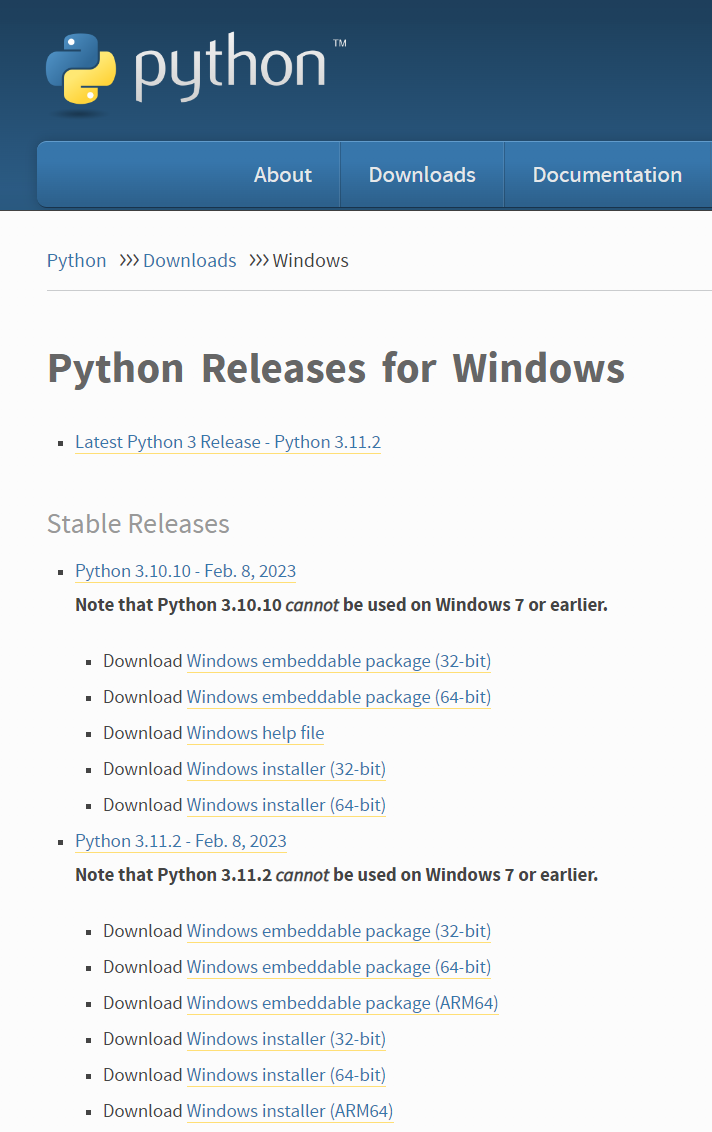 You can download any of the stable versions.
You typically want to download the Windows Installer (64-bit) for modern hardware. Unless you know you need the 32-bit version, try the 64-bit first.
Once the download is complete, double-click the installer to launch it.
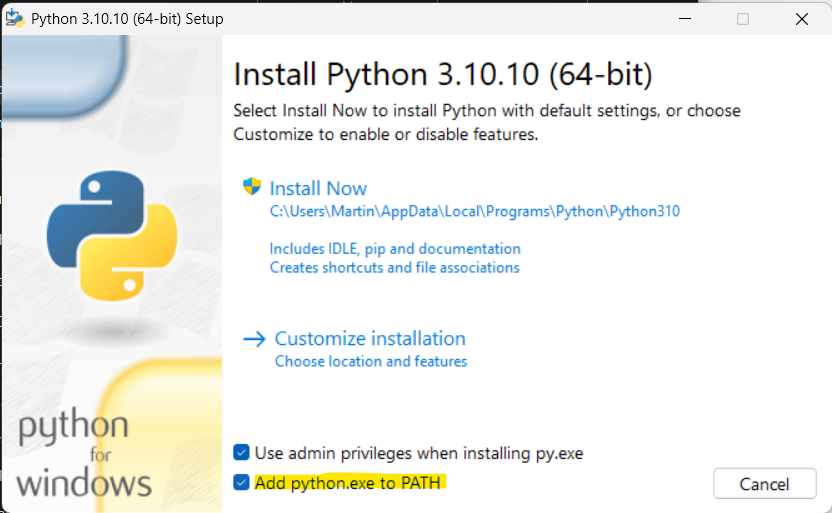 The Python for Windows installer. Ensure sure Add python.exe to PATH is checked.
You'll see the installer welcome screen which describes what the installer will do.
Make sure that Add python.exe to PATH is checked in the installer. This makes it easier to use Python from the command prompt -- you just need to enter "python" to start, rather than the full path to the executable.
Comprehensive code review • Bugfixes & improvements • Maintainability advice and architecture improvements • Design and usability assessment • Suggestions and tips to expand your knowledge • Packaging and distribution help for Windows, Mac & Linux • Find out more.
When you are ready to begin the installation you can click Install Now.
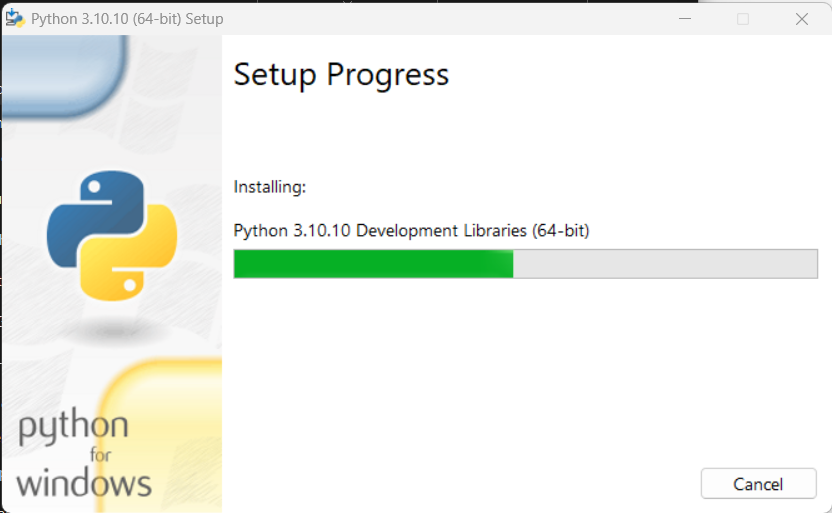 Installing Python on Windows.
The install will proceed as normal, installing all the required libraries (including Tcl/Tk for Tkinter). Once complete you can exit the installer.
Verify Your Python Installation
Open a command prompt and start Python by entering python. This will start the Python REPL, where you can enter interactive Python code.
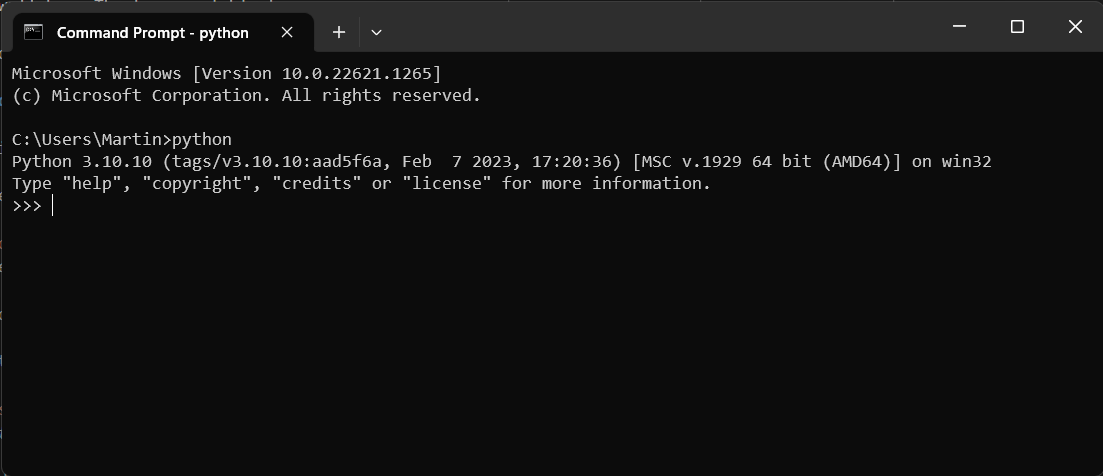 The Python REPL for our newly installed Python installation.
If you see the Python version number and the >>> prompt, your installation was successful.
Troubleshooting Common Installation Issues
If typing python in the command prompt gives you an error such as 'python' is not recognized, the most likely cause is that Python was not added to your system PATH. You can fix this by re-running the installer, selecting Modify, and ensuring the "Add python.exe to PATH" option is checked.
Another common issue on Windows 10 and 11 is that typing python opens the Microsoft Store instead of the interpreter. To resolve this, open Settings > Apps > Advanced app execution aliases and disable the "App Installer" entries for python.exe and python3.exe.
Installing Python GUI Libraries on Windows
Now you have the latest version of Python set up on your computer, you can move on to installing the libraries you need for creating GUI applications with Python. See below for installation guides for PyQt, PySide & Tkinter on Windows.
- Install PyQt6 on Windows
- Install PySide6 on Windows
- Install Tkinter on Windows
- Install PyQt5 on Windows
- Install PySide2 on Windows
PyQt/PySide Development Services — Stuck in development hell? I'll help you get your project focused, finished and released. Benefit from years of practical experience releasing software with Python.
